Product – an item in physical, virtual, or cyber form, as well as a service offered for sale. Every product is made at a cost and sold at a price.
Product is a Hierarchy entity type in PIM. Each product can be assigned to a Classification, which defines the attributes to be collected for that product. A product can be assigned to several categories, belong to a brand, be described in multiple languages, and be prepared for distribution via different channels. Products can also be linked to other products through associations, and different attribute values can be set per channel.
Product Fields
The following fields are available on the Product entity out of the box. Mandatory fields are marked with *. The detail view groups them into panels — Master Data, State, Description, and Taxonomy — with Main Image shown in the side panel. Fields not included in the default layout can be added via Administration > Layouts > Product.
| Field | Panel | Description |
|---|---|---|
| Main Image | Side panel | Read-only. The primary image of the product, automatically determined from the product's linked files. |
| Name * | Master Data | The product name. Supports multiple languages if multilingual mode is enabled. |
| Brand | Master Data | Reference to the Brand associated with the product. |
| Number * | Master Data | The internal or external product identifier (e.g., SKU, article number). Unique; not inherited from parent products. |
| Country of Origin | Master Data | The country where the product was manufactured or produced. |
| Customs Number | Master Data | The customs tariff number for the product (up to 16 characters). |
| Recommended Retail Price (RRP) | Master Data | The suggested retail price, stored with a currency unit. |
| Sort Order | Master Data | The display order among sibling products in the hierarchy. Visible only for root-level products. |
| Status * | State | The lifecycle state of the product. Default options: Draft, Prepared, Reviewed, Not Ready, Ready. |
| Tag | State | Multi-select tags for categorization, filtering, and quick identification. |
| Active | State | Indicates whether the product is active. Inactive products can be excluded from exports and channel feeds. |
| Short Description | Description | A plain-text summary of the product, typically used in listings or preview contexts. Supports multiple languages. |
| Long Description | Description | A full HTML description with rich formatting support (headings, lists, tables, embedded media, etc.). Intended for detailed marketing or technical content. Supports multiple languages. |
| Classifications | Taxonomy | The Classifications assigned to the product, which determine which attributes are available. A product can have more than one Classification. |
| Product Group | Taxonomy | Groups the product within an internal product group structure. |
| Categories | Taxonomy | The Categories the product belongs to. A product can be assigned to multiple leaf categories. |
| Channels | Taxonomy | The Channels through which the product is distributed (e.g., online stores, marketplaces). |
| Parent | Taxonomy | The parent product in the product hierarchy. |
| GTIN/EAN | — | The product barcode in EAN-8, EAN-12, EAN-13, or EAN-14 format. Not in the default layout. |
| Manufacturer Number (MPN) | — | The manufacturer's part number. Not inherited from parent products. Not in the default layout. |
| Purchase Price | — | The purchase or cost price, stored with a currency unit. Not in the default layout. |
| Quantity | — | The product quantity (minimum 0). Not in the default layout. |
| Default Supplier | — | The default supplier (linked Account) for this product. Not in the default layout. |
| Note | — | A plain-text internal note. Not in the default layout. |
To add new fields or modify the product entity, go to Administration > Entities > Product.
View Modes
Products support two view modes: list view and plate view. Use the view mode switch in the top-right area of the page header to toggle between them. The plate view shows each product as a card with its main image and key fields, which is useful for visually browsing a large catalog.
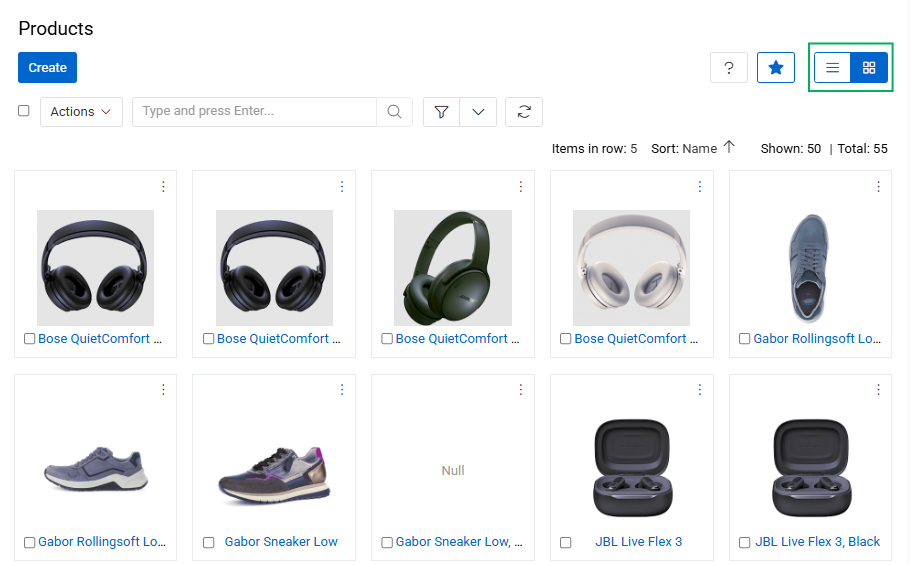
To open the list of products, click Products in the navigation menu.
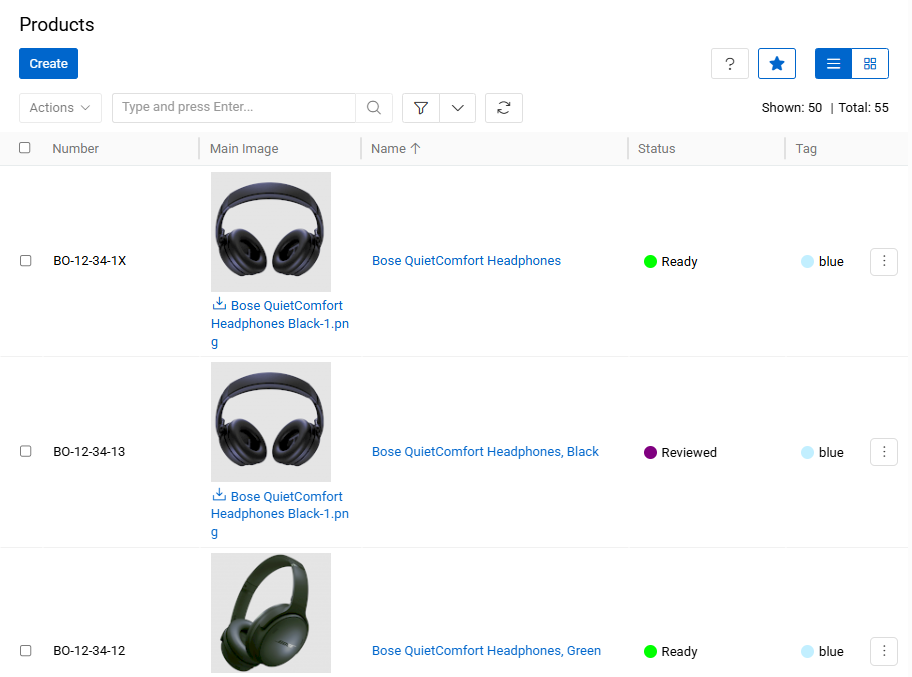
By default, the list view displays the following fields: Number, Main Image, Name, Brand, Status, Tag, and Active. Click any sortable column header to sort the list ascending or descending.
Mass Actions
The following mass actions are available on the product list and plate view pages: Remove, Compare, Merge, Select, Mass Update, Export, Add Relation, Remove Relation, and Delete Attribute.
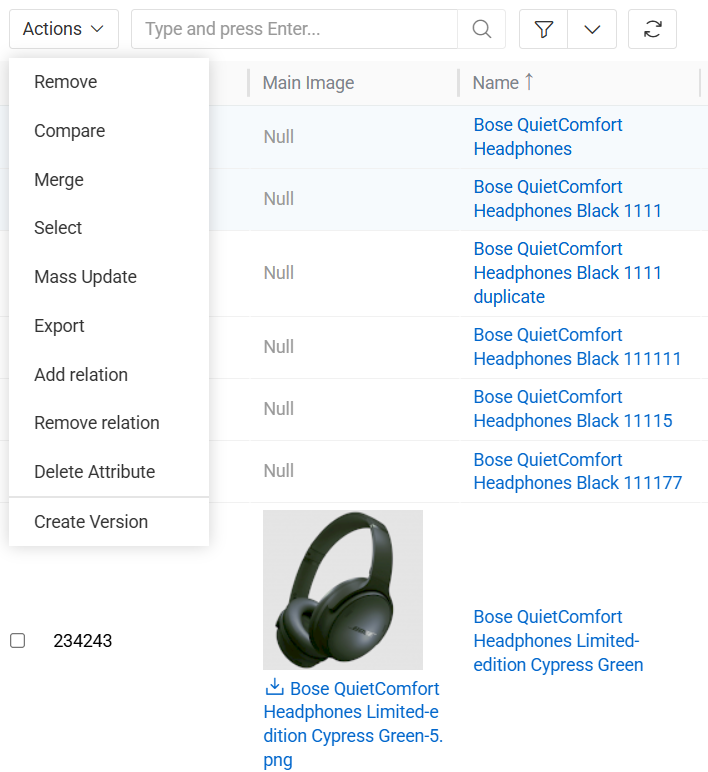
For details on each action, refer to the Mass Actions article.
Single Record Actions
The following actions are available per product record: View, Edit, Delete, and Bookmark.
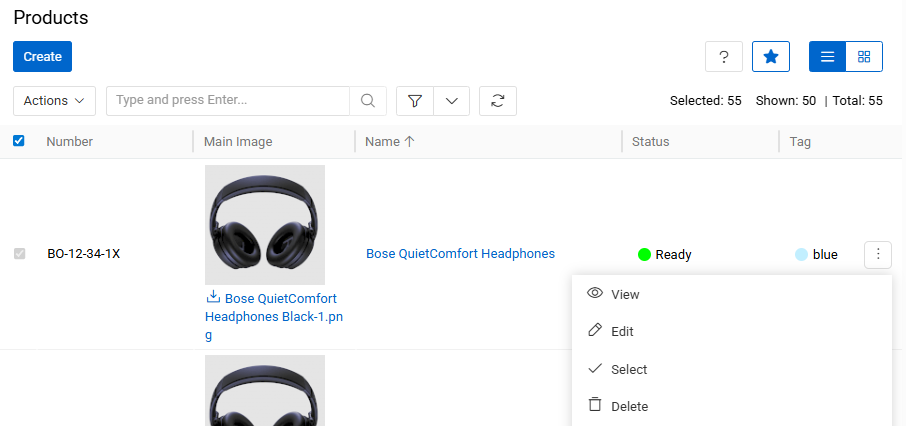
For details, refer to the Record Management article.
Product-Specific Filters
In addition to all standard search and filtering options, products support two additional filters:
Without Main Image — shows only products that have no Main Image assigned. Useful for identifying records that need visual content before publication or export.
Multiple Classifications — shows products assigned to more than one Classification. This is a supported feature that allows a product to belong to multiple Classifications simultaneously.
Product Hierarchy
Products is a Hierarchy entity type, meaning product records can be organized in a parent–child structure. This enables inheritance of values and properties from parent products to child products, and allows you to build structured product trees such as product families or variant groups.
Two hierarchy panels are available by default on the product detail view.
Parent Products
This panel shows the parent product of the current record. If the Multiple Parents option is enabled for the entity, more than one parent can be displayed. From this panel you can link an existing product as a parent or remove an existing parent relationship.
By default, the Parent field also appears in the Taxonomy panel of the detail form. An administrator can remove it from the Taxonomy panel via Layout Management to avoid redundancy.
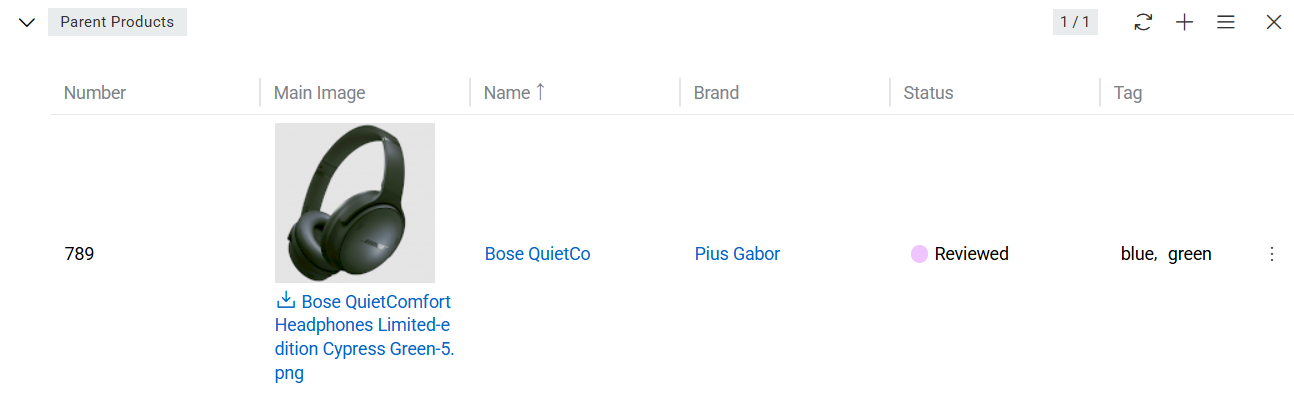
Child Products
This panel displays all child products linked to the current product. Users can open child records directly from this panel or manage relationships by linking or unlinking products.

The fields shown in both hierarchy panels match those configured for the product list view.
Related Entities
The following entities are related to products and displayed on corresponding panels on the product detail view page:
If any panel is missing, contact your administrator to check your access rights.
Attributes
Product attributes are characteristics that distinguish a product from others — for example, size, color, or material. They are displayed on the Attributes panel, grouped by attribute groups.
The most efficient way to add attributes to a product is through a Classification — all attributes defined in the Classification are automatically linked. Attributes can also be linked directly from the Attributes panel using the + button, unless the administrator has disabled direct linking.
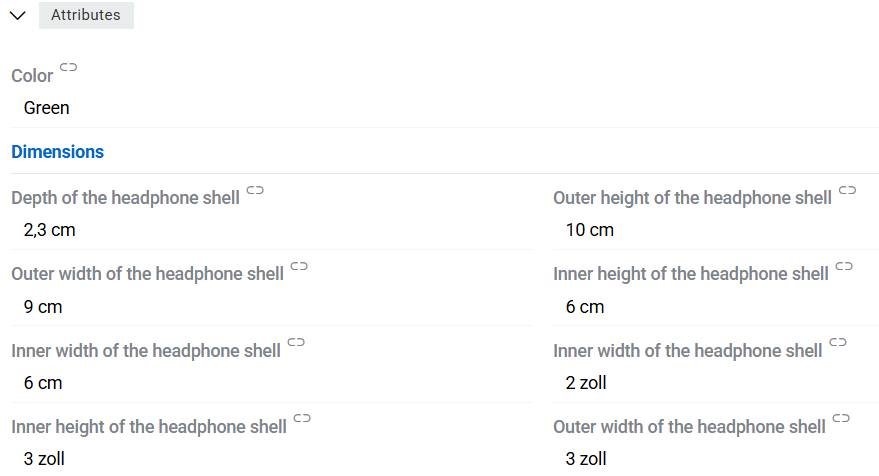
For full details, see the Attributes documentation.
Categories
Categories linked to the product are shown in the Categories field on the product detail view. A product can be assigned to multiple categories. By default, products can only be assigned to leaf categories (categories with no children) — this behavior is configurable in PIM Settings.
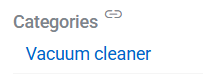
Categories can be linked by selecting existing ones or creating new ones directly from this field.
Channels
Channels linked to a product are shown in the CHANNELS field. Channels represent distribution endpoints — such as online stores, marketplaces, or print catalogs — and are used to control which product information is prepared and exported for each destination.

Channels can be linked to a product by selecting existing ones or creating new ones from this field.
Associated Items
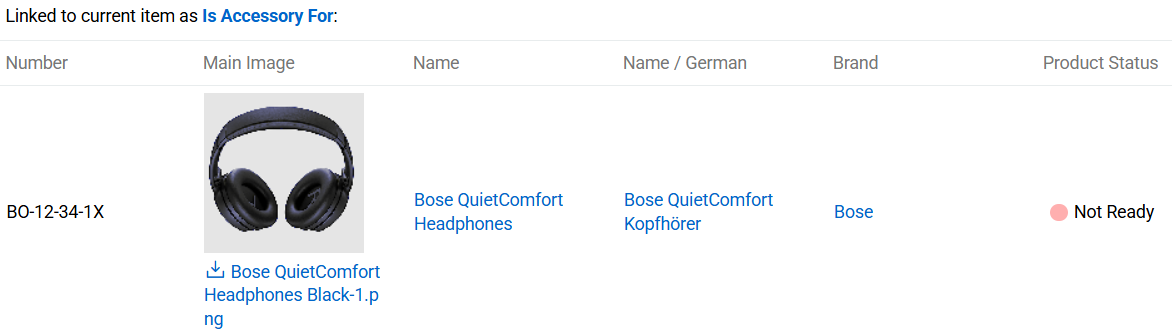
Products linked to the current product through an association are displayed on the Associated Items panel. Items are grouped by association type.
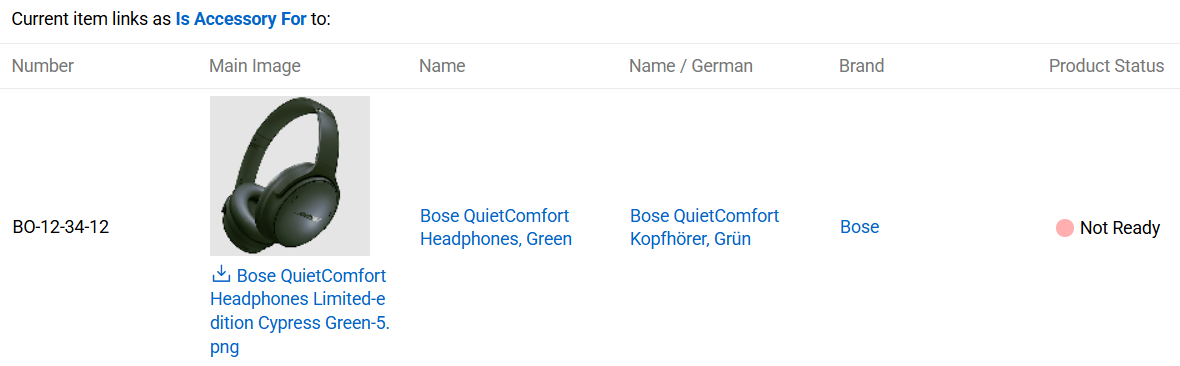
Associating Items
Products to which the current product is linked through an association are displayed on the Associating Items panel. Items are grouped by association type.
Files
Files linked to the product are shown on the Files panel. Files can be linked by selecting existing ones or uploaded directly from this panel. The display order can be set via drag-and-drop, and any image file can be promoted to the product's Main Image using the row action menu.
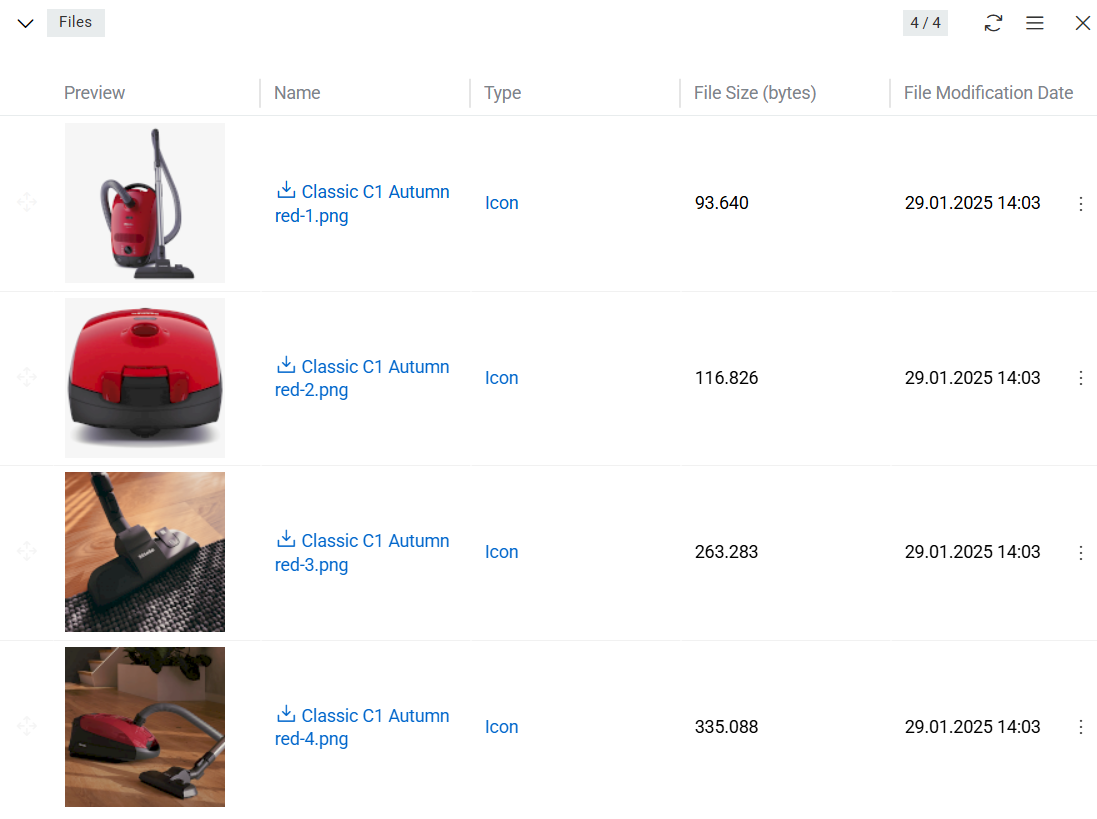
For more information about file management, see File Operations.
Product Preview
Product Preview lets you see how a product will appear in a destination such as a marketplace or export feed. It renders field values and attributes using a configurable template, and fields can be edited directly from the preview without opening the edit form.
The default template is available at Administration > Preview Templates > Product preview. Additional templates can be created there; each one automatically generates a corresponding action on the product record.
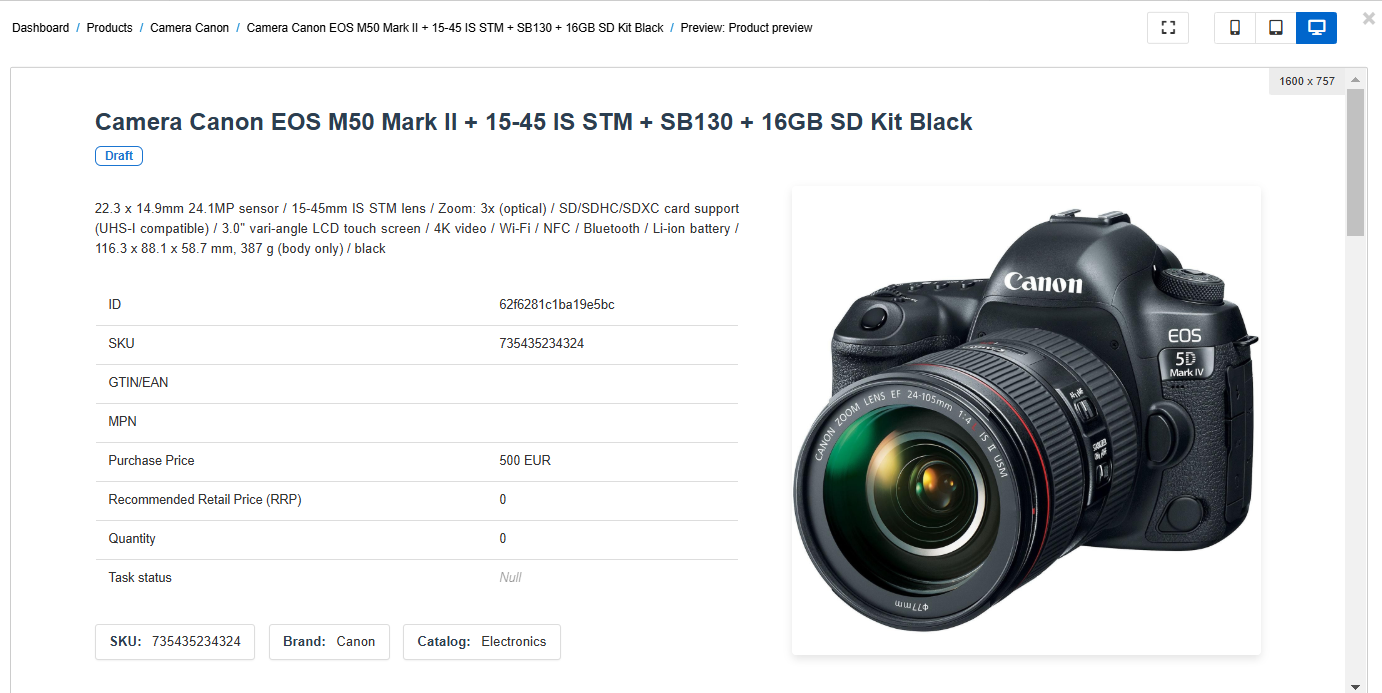
For full details, see Record Preview.