Users in AtroCore are system accounts that provide access to the platform. Each user can be assigned specific roles and teams to control their permissions and access levels throughout the system.
Users can be accessed through Administration > Users and are essential for managing who can access the system and what they can do within it.
Overview
Users provide the foundation for access control in AtroCore. Each user account represents a person who can log into the system and perform actions based on their assigned roles and team memberships.
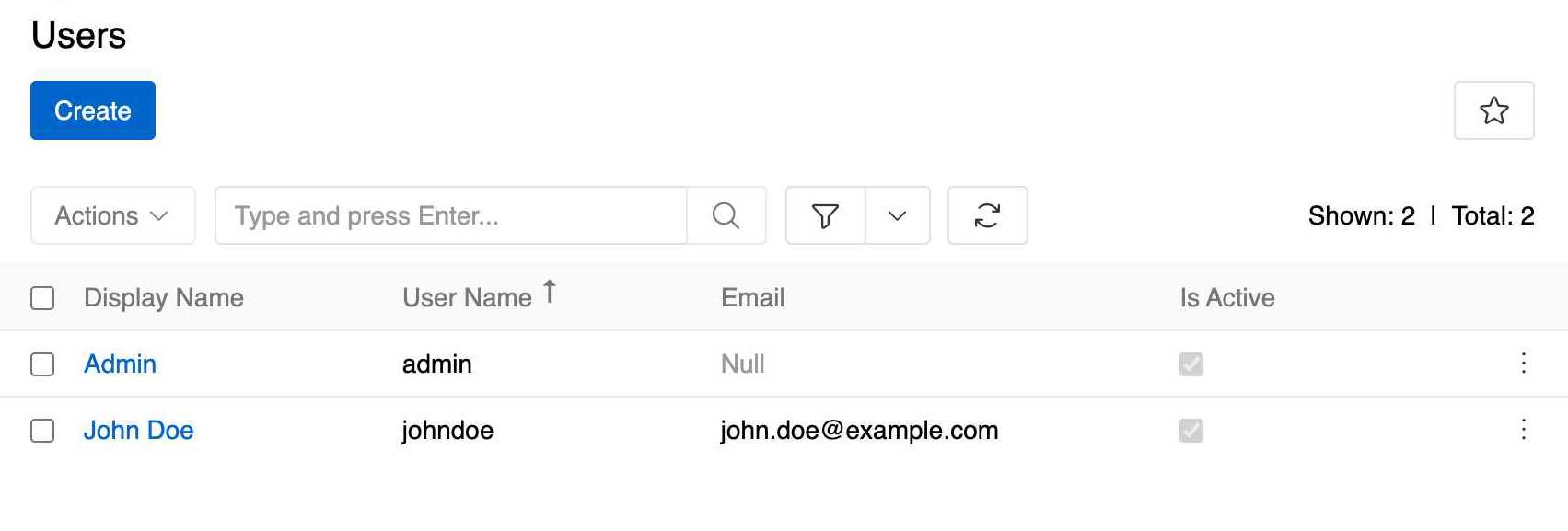
Users are essential for:
- System Access - Providing login credentials and authentication
- Role-based Permissions - Assigning specific access rights through roles
- Team Organization - Grouping users for collaborative work
- Audit Trail - Tracking who performed what actions in the system
User Properties
Basic Information
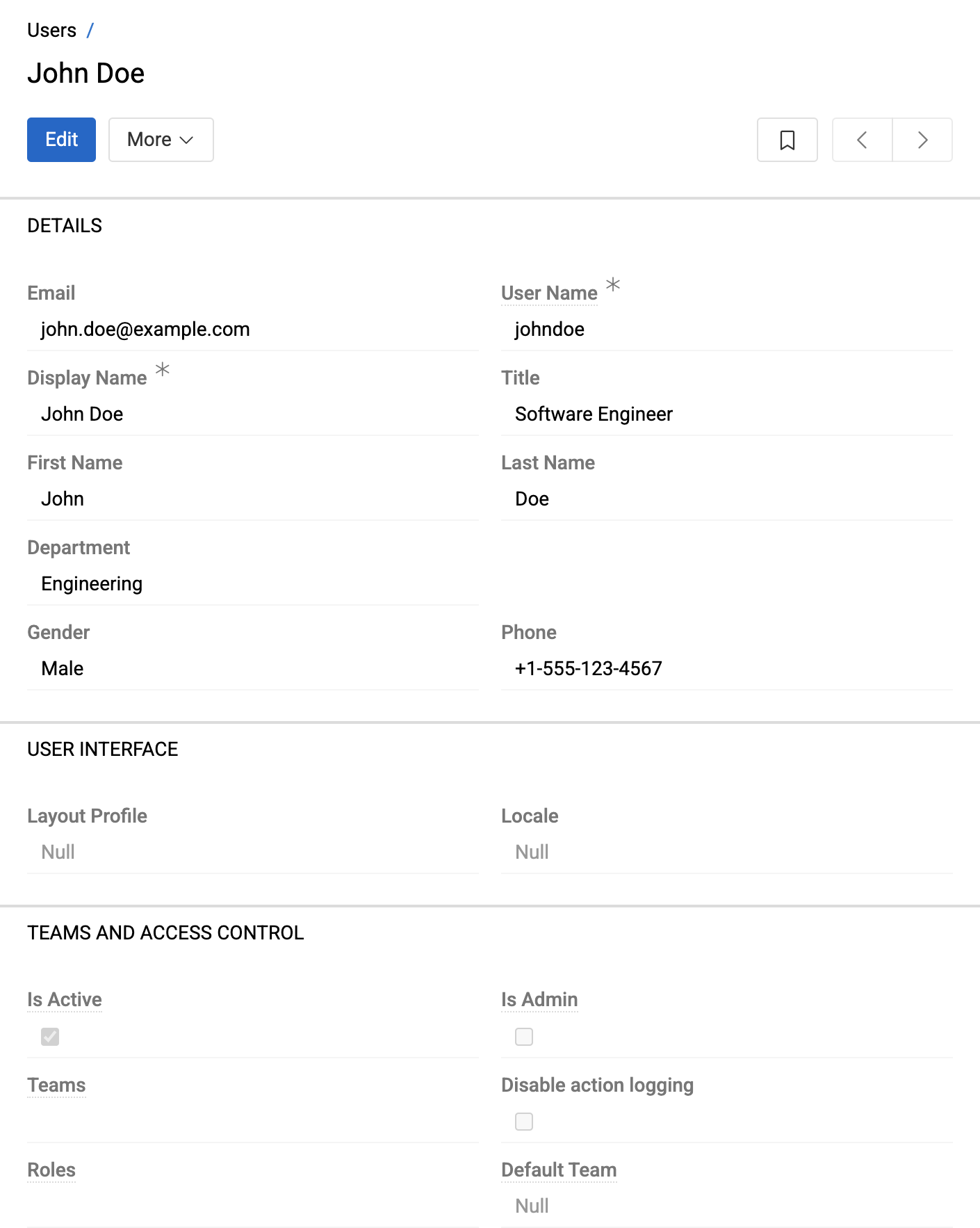
Each user has the following core properties:
- Email (*): Primary contact email and login identifier
- User Name (*): Unique username for system login
- Display Name (*): Name shown throughout the system interface
- Title: Professional title or position
- First Name/Last Name: Personal name information
- Department: Organizational department assignment
- Gender: Personal identification - value of list Gender (Male/Female/Neutral)
- Phone: Contact phone number
Account Settings
User Interface:
- Layout Profile: Custom layout configuration for the user's interface
Access Control:
- Active: Controls whether the user can log into the system
- Global Administrator: Grants full administrator privileges with maximum system access
- User Administrator: Grants administrative privileges to create and manage users. This permission does not allow granting administrator privileges to other users
- Entity Administrator: Grants administrative privileges for managing entities and their fields
- Role Administrator: Grants administrative privileges for managing access roles
- Teams: Assigns user to specific teams for collaborative access
- Roles: Defines user permissions through role assignments
- Default Team: Sets the primary team for the user
- Disable Action Logging: Prevents tracking of user actions in Action History
Every administrator level opens the
Administrationpanel, but each one sees only the items they are allowed to work with – see Administration Panel Access.
Security:
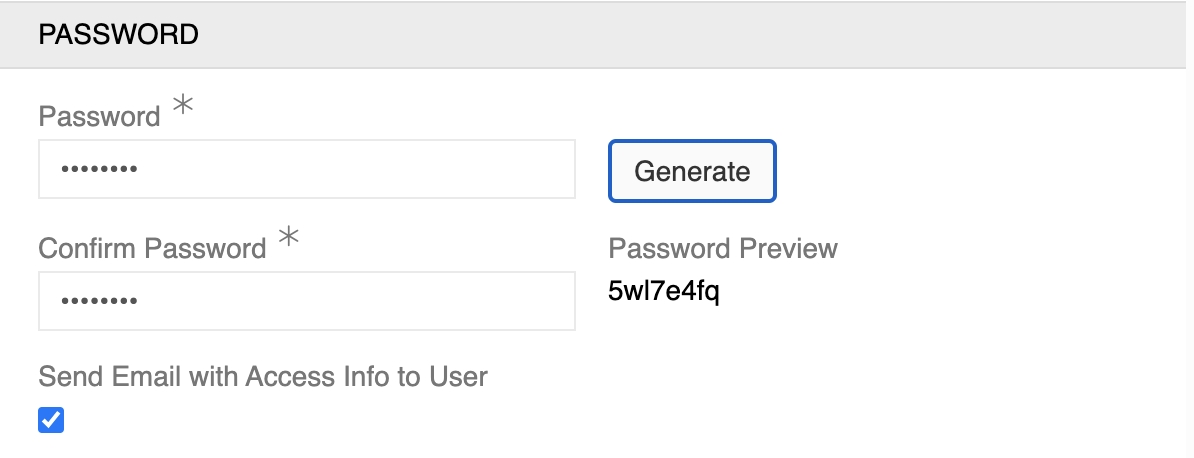
The Security section is only visible during user creation and provides essential account setup options:
- Password (*): Secure login credential with password strength requirements
- Confirm Password (*): Password verification to ensure accuracy
- Send Email with Access Info to User: Automatically sends login credentials to the user's email address (requires email configuration)
Button Generate allows to automatically generates a secure password for the user. The generated password will be shown in Password Preview for verification.
Password Management
Administrators can manage user passwords through various methods and configure password policies to ensure system security.
Password Operations
Administrators have the following options for managing user passwords:
- Change Password: Modify a user's password by entering a new password directly
- Reset Password: Generate a password reset link sent to the user's email address (requires email configuration)
To manage user passwords, administrators should:
- Navigate to the User entity record for the target user
- Access available record actions from the user's detail view
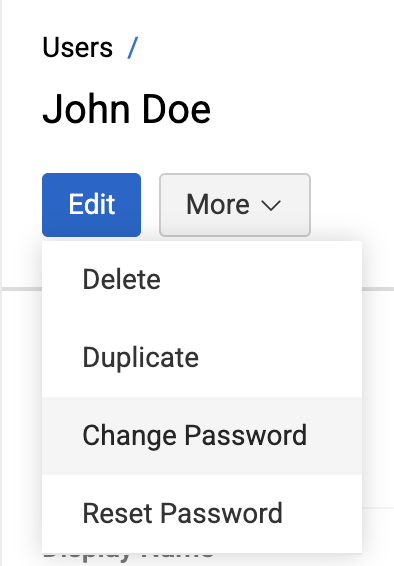
When the Change Password action is selected, the following dialog opens:
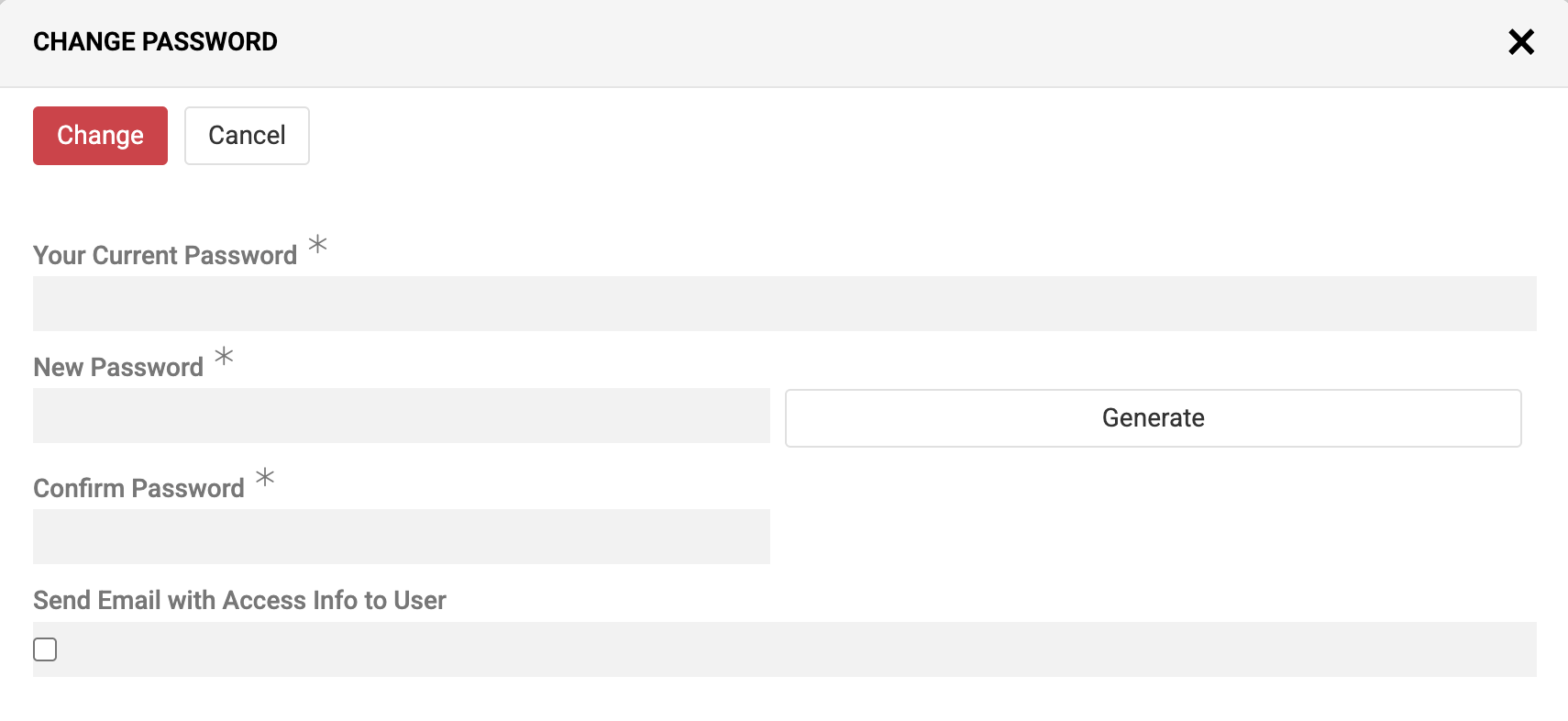
The Change Password dialog provides the following options:
- Your Current Password (*): Enter the administrator's own password for verification (not the target user's password)
- New Password (*): Define the new password with optional Generate button for automatic password creation (generated password fills both New Password and Confirm Password fields and is displayed as plain text next to Confirm Password field to copy/share with the user if needed)
- Confirm Password (*): Re-enter the new password to ensure accuracy
- Send Email with Access Info to User: Optional checkbox to automatically notify the user of their new credentials (requires email configuration)
When using the Reset Password option, the user will be automatically logged out of their account and their current password will become invalid.
Email Templates Configuration
Password reset and change operations can trigger email notifications to users. Email templates are managed through the Email Templates entity and can be customized by administrators.
To modify password-related email templates:
- Navigate to
Administration > Email Templates - Select the appropriate template:
- "Password Reset" for password reset notifications
- "Password Change Request" for password change confirmations
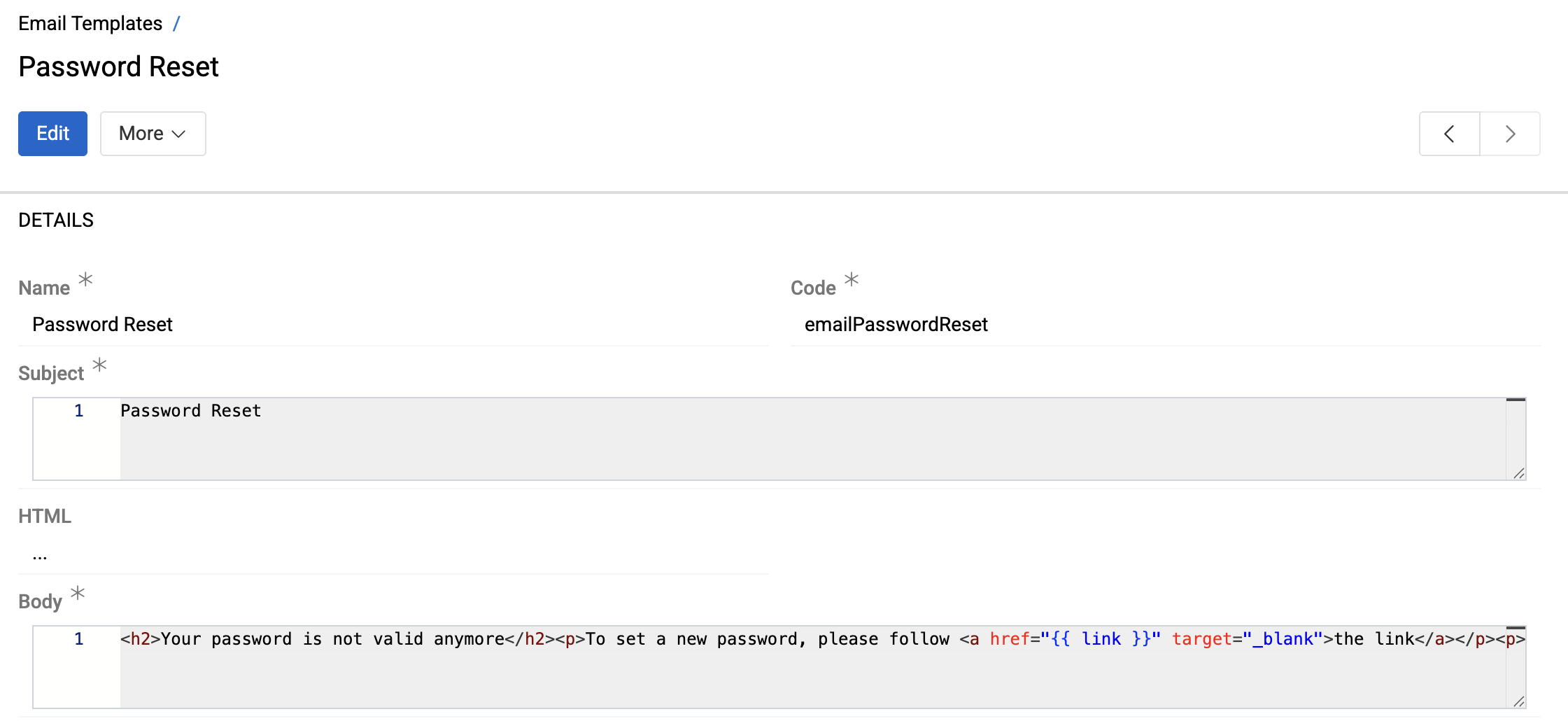
- Modify the email subject and body content as needed
- Save the template
Password Policy Configuration
Administrators can enforce password complexity requirements and expiration policies through the Security section of System settings.

- Password Regex Pattern: Define minimum character requirements, character types, and complexity rules
Example configuration requires passwords with minimum 8 characters, uppercase letters, and special characters
- Password Expiration: Lets you set how long a password remains valid before the user is required to change it. When the expiration period is reached, the user will be prompted with a password change form.
User Management Features
Administrator Privileges
The Global Administrator checkbox grants the user full system access with maximum permissions. Such a user can:
- Access all system areas and functions
- Manage other users, roles, and teams
- Configure system settings and preferences
- Override standard access controls
Three limited levels exist for delegating a single administrative task without granting full access:
| Level | Grants |
|---|---|
| Entity Administrator | Create, modify and delete entities and their fields |
| Role Administrator | Create, modify and delete access roles |
| User Administrator | Create, modify and delete users |
Limited levels are shown only while Global Administrator is unchecked – a global administrator already holds all of them.
Only a Global Administrator can change these four checkboxes. A User Administrator creates and edits users, but cannot grant any administrator level to anyone, including themselves, and cannot edit an existing Global Administrator.
Administrator status should be granted carefully as it provides complete system access.
Administration Panel Access
Every administrator has the Administration item in the user menu and can open the panel. The panel lists only the items available to the user:
- A Global Administrator sees all items.
- Any other administrator sees an item only if it refers to an entity they are allowed to read – Entity Manager for an Entity Administrator, Roles for a Role Administrator, Users for a User Administrator. Items covered by the assigned roles, such as Jobs, Storages or Import Feeds, are shown as well.
- Items that refer to no entity stay available to the Global Administrator only: System Settings, Authentication, User Interface, Layout Manager, Auth Tokens, API Request, Composer, module settings, Clear Cache and Rebuild Database.
Groups without available items are hidden, so a limited administrator gets a short panel holding their own tasks only. The navigation tree on the left of the panel follows the same rule.
Opening a page the user is not allowed to see – by a direct link, for example – results in an access denied message.
Team Assignment
Users can be assigned to multiple teams simultaneously, providing flexible organizational structures:
- Multiple Team Membership: Users can belong to several teams at once
- Default Team: Sets the primary team for the user's default context
- Collaborative Access: Team membership affects data visibility and permissions
Role-based Permissions
Users receive the combined permissions from all their assigned roles:
- Permission Summation: Total permissions = sum of all role permissions
- Flexible Assignment: Users can have multiple roles for complex access needs
- Granular Control: Fine-tuned permissions through role configuration
For detailed information about configuring roles and permissions, see Roles.
Example
Roles 1 and 2 are assigned to the user.
With role 1 he has access and authorizations to entities A and B. With role 2 he has access and authorizations to entities B and C. Since the user is assigned both roles, he receives access and authorizations to entities A, B and C.
Personal Account Management
Every AtroCore user can view and edit their own account data (if such authorizations are set for their role).
For detailed information about changing passwords and managing personal account settings, see User Profile.