AtroСore can be used as a Master Data Management (MDM) system. This means that users can import data into the platform in any convenient way. Inside AtroСore, this data can then be improved, structured, and enriched if necessary, and finally exported to external systems such as marketplaces or other platforms.
Imported data can be modified during the import process. However, in some cases it is important to preserve the original data exactly as it was received and not modify it, while at the same time creating new records in other entities based on this data. This is especially relevant when data comes from multiple source systems that may differ in their field sets, data formats, or structures.
To manage such scenarios, AtroСore provides the concept of Master Data Management (MDM). With this approach, the data structure consists of three main layers: Source Entities, Contributor Entity, and Master Entity.
Source Entity
A Source Entity is the initial entity (or multiple entities) into which users import unmodified or minimally modified data from one or more external systems.
- A source entity can have an arbitrary set of fields, depending on the structure of the incoming data.
- It reflects the raw or near-raw data as provided by external systems.
- Multiple source entities can exist if data is coming from different systems with different schemas.
Contributor Entity (Derivative Entity)
The Contributor Entity (a Derivative entity with the Contributor role) is used as an intermediate layer between source data and master data.
It is a full copy of the Master Entity and reproduces its data model exactly, with only one important difference – it does not contain any mandatory or unique fields.
- The contributor entity is always a single entity per master entity.
- It is linked to the master entity with a one-to-one relationship.
Create Contributor entity
To create a contributor entity, go to Administration / Entities and create a new entity. In the Derivation panel, set the Primary Entity field to the master entity and select Contributor in the Role field.
Please note:
- The role cannot be changed after the derivative entity is created.
- Only one derivative entity with the same role can exist per master entity.
- A derivative entity cannot be created from another derivative entity.
- Derivative entities cannot be deleted directly.
All derivatives of a master entity are listed in its Derivatives panel.
The contributor entity contains a Master Record field, which can be used to link the contributor record to the corresponding record in the master entity. It is displayed in the Data Lineage panel.
The contributor entity fully inherits the fields, attributes, and layouts of the master entity. These settings cannot be modified manually for the contributor entity, as they are always inherited automatically from the master entity.
Navigation between Contributor and Master entities
For convenient navigation between Contributor and Master entities, the buttons "Open Contributor Entity" and "Open Master Entity" are available in the top-right corner of the list view.
These buttons allow users to quickly switch from a Contributor entity to its corresponding Master entity and vice versa.
Please note that the button is displayed only if the user has permission to view the corresponding entity. If the user does not have the required access rights, the button will not be visible.
Data Pipelines
To define how source data is transferred to the contributor entity, configure one or more Data Pipelines. Each pipeline connects one source entity to a target entity and defines the transformation logic.
Pipelines are managed under Administration / Data Pipelines in the Master Data Management section.
Each pipeline record contains the following fields:
- Source Entity – the source entity this pipeline reads from.
- Target Entity – the target entity this pipeline writes to (e.g. the contributor entity).
- Transformation Script – a Twig script that defines how source record data is transformed and mapped to the target record.
- Execute Transformation As – the user account that will be used to create and update target records:
SystemorSame User.
Both the Source Entity and Target Entity fields are locked after the pipeline is created and cannot be changed. Only one pipeline can exist per pair of entities, but the same source entity can be used in several pipelines that write to different target entities.
Link between source and target records
Each pipeline creates a One-to-One relation between its source and target entities, with a read-only Link field on both sides:
- on the source entity, a field labelled with the name of the target entity;
- on the target entity, a field labelled with the name of the source entity.
Both fields are filled by the pipeline and cannot be edited manually. Because the relation is One-to-One, a source record references exactly one target record, and a target record can be referenced by only one record of the same source entity. When a source entity is used in several pipelines, each of them gets its own field. All these fields are displayed in the Data Lineage panel.
Transformation Script
The transformation script is a Twig template that must return a JSON object with the field values to write to the target record:
{
  "name": "{{ sourceRecord.name }}"
}
Wrapping the field values in the targetRecordData key is deprecated and will no longer be supported in AtroCore 3.0.0.
The default value of the field is wrapped in a Twig comment (
{# ... #}) and serves only as an example of the expected format – a script wrapped in comment markers produces no output and is ignored. Remove the comment markers and adjust the script to activate the pipeline.
Two variables are available in the script:
sourceRecord– the source record that triggered the sync.targetRecord– the existing target record, ornullwhen the target record does not yet exist.
Transformation Preview
The Transformation Preview window shows how the target record would look after the transformation. Nothing is saved while the preview is used. The window can be opened in two ways:
- with the Transformation Preview button on the detail page of a source record – the opened record is used as the source record. If the source entity is used in several pipelines, the target entity can be selected in the header of the target column;
- with the Transformation Preview button on the detail page of a data pipeline – the target entity of the pipeline is used, and the source record can be selected in the header of the source column. The most recently created source record is selected by default.
The window shows the source record and the target record side by side, and the transformation script of the pipeline in the right side panel. The following actions are available in the panel:
- Preview – applies the script from the editor to the source record and shows the result in the target column. The script does not need to be saved first. If the target record does not exist yet, the target column stays empty until the preview is applied.
- Discard – restores the saved script and hides the preview.
- Save – saves the script from the editor to the data pipeline.
The preview is executed with the access rights of the current user, the same as the transformation script during automatic synchronization.
Automatic synchronization
Once a pipeline is configured, the system automatically:
- Creates a new target record when a source record is saved and has no linked target record yet. The created record is linked to the source record via the field described above.
- Updates the target record when the source record is saved and is already linked.
- Re-applies all pipelines for the target entity when the Master Record link of the target (contributor) record is changed – data from the linked source record of each source entity is pushed to the target record again.
The transformation script is always executed with the access rights of the user who triggered the save. Target records are created and updated according to the Execute Transformation As field:
| Option | Target records are saved by |
|---|---|
| System | the system user, with full access rights |
| Same User | the system user on behalf of the user who triggered the save, with the access rights of that user |
Data Unification and Deduplication
At the contributor level, data is prepared for consolidation into the master entity. Two key processes take place here: data unification and duplicate detection.
Data unification means bringing data into a consistent and standardized format. This may include, for example, representing phone numbers in a single unified format, normalizing country codes, aligning date formats, or standardizing naming conventions. Such transformations ensure that data coming from different source systems becomes comparable and consistent.
Duplicate detection is performed using the Matching mechanism in PIM. In this mechanism, you can define matching rules that determine how potential duplicates are identified. These rules may be based on one or multiple fields (for example, name, email, phone number, external ID, or combinations of these) and can include exact or fuzzy matching logic.
After unification and duplicate detection, unified and validated data is transferred to the Master Entity, where it forms a single, consolidated, and reliable version of each record.
Consolidation
The consolidation of contributor records into master records is configured via Consolidation records, managed under Administration / Consolidations in the Master Data Management section. One Consolidation record exists per master entity and contains the following settings:
- Entity – the master entity this configuration applies to. Only master entities that already have a derivative with the Contributor role can be selected.
- Consolidation Script – a Twig script that defines how contributor record data is transformed, unified, and mapped to the master record. See below.
- Execute Consolidation As – the user account that will be used to execute the Consolidation Script:
SystemorSame User. - Update Master Automatically – when enabled, any update to a contributor record and any deconsolidation of contributor records automatically trigger an update of the linked master record according to the Consolidation Script.
- Consolidate Automatically – when enabled, cluster items are consolidated automatically by the
Create Clustersscheduled job. When checked, the Minimum Matching Score field becomes required and defines the consolidation threshold. - Delete Invalid Masters Automatically – when enabled, excess master records in invalid clusters are deleted automatically.
See Clusters for details on how these settings are applied during the clustering and consolidation workflow.
Consolidation Script
The consolidation script is a Twig template that must return a JSON object with the field values to write to the master record:
{
  "name": "{{ (candidates|last).name }}"
}
The default value of the field is wrapped in a Twig comment (
{# ... #}) and serves only as an example of the expected format – a script wrapped in comment markers produces no output. Remove the comment markers and adjust the script to activate the consolidation.
Three variables are available in the script:
candidates– the contributor records that triggered the rendering and are not excluded by the Skip Condition:- on consolidation – all unconsolidated contributor records of the cluster;
- on update of a contributor record by Update Master Automatically or by the Update Master Record action – only the updated record, which is also present in
contributors; - after a deconsolidation – empty, so the script must handle an empty
candidatesarray if Update Master Automatically is enabled.
contributors– all contributor records already linked to the master record.masterRecord– the existing master record, ornullwhen the master record does not yet exist.
The script is rendered once per consolidation, regardless of how many cluster items are consolidated.
Skip Condition
The Skip Condition is an expression that is evaluated for each candidate. Two variables are available in it: candidate and masterRecord. Candidates for which the expression returns true are excluded from candidates, e.g. candidate.get('name') == null.
If the Skip Condition excludes all candidates, the consolidation script is not rendered and the master record is neither created nor updated:
- If the master record does not exist yet, nothing is consolidated.
- If the master record already exists, the selected contributor records are still linked to it, but its field values remain unchanged.
Data Lineage Panel
The fields that connect the three layers to each other are created by the system, not by the user, and are therefore placed on the detail layout automatically, in a separate Data Lineage panel:
- Master Record – on the contributor entity, the link to the master record it is consolidated into.
- The Link fields created by the data pipelines – on the source entity, the link to the target record, and on the target entity, the link to the source record.
The panel is added at the end of the detail layout as long as the entity has no customized detail layout of its own. It also appears in Administration / Layouts, so saving the detail layout there turns the panel into a regular part of it. From then on the system no longer adds the panel, and it is managed manually like any other panel.
A contributor entity that inherits the layout of its master entity has no layout of its own, so it still receives the panel even if the layout of the master entity is customized.
Data Lineage Tab
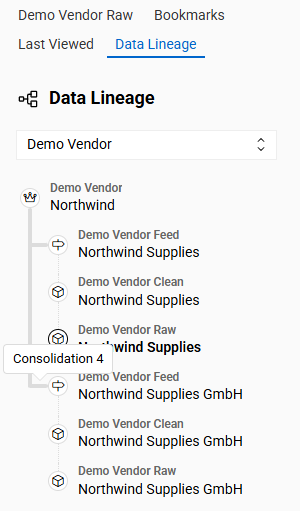
On the detail view of a record, the left sidebar contains the Data Lineage tab. It shows the chain of records the data of the current record passes through – via the data pipelines and the consolidation – up to the final record, and the records this final record is built from.
The tab is available for the source and target entities of the data pipelines, for the contributor entities and for the master entities that have a contributor entity.
Tree Structure
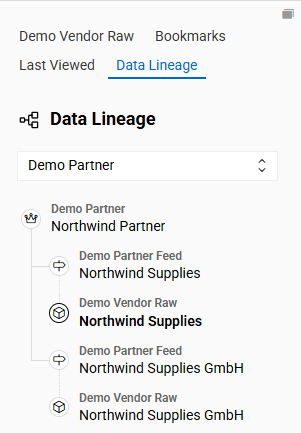
The final record, called the endpoint, is displayed at the top of the tree. Usually it is a master record. Below it, the records the data comes from are displayed, down to the source records at the bottom. From any record there is only one path to the endpoint.
The records are connected as follows:
- Contributor records are indented under their master record and connected to it with a solid line.
- Records connected by a data pipeline are displayed one under another at the same level and connected with a dotted line.
Each record is displayed with its entity name and its name. Clicking the name opens the record. The current record is highlighted. Records you have no read access to are displayed with the entity name only.
Endpoint Selection
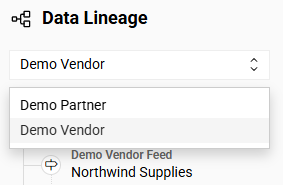
The data of a record can reach several endpoints, e.g. when its entity is the source entity of several data pipelines. All endpoints are listed in the drop-down list above the tree, and the tree is built for the selected one. If there is only one endpoint, the drop-down list is disabled.
When you open another record, the selected endpoint is kept as long as it is reachable from that record. Otherwise, the first endpoint is selected.
Opening Data Pipelines and Consolidations
The lines between the records are clickable and open the corresponding configuration in a new browser tab:
- A dotted line opens the data pipeline that connects the two entities.
- A solid line opens the consolidation of the master entity.
Hovering over a line highlights it and shows the name and the number of the configuration. A line is not clickable if the configuration does not exist or you have no read access to it.