A Classification is a template that defines a set of attributes shared by a group of entity records. It describes what data should be collected for records of a given type and controls which attributes are mandatory and which are optional.
Classifications are most commonly used with Products but can be enabled for any entity via the Entity Manager. One attribute can be used in multiple Classifications, and one Classification can have many attributes. Each record can be assigned to multiple Classifications.
When a Classification is selected on a record, all attributes defined in that Classification are automatically linked to the record. Attributes linked via a Classification can be unlinked from the record afterwards.
Classifications can be activated or deactivated.
Available Extensions:
- Data Quality — Tracks content completeness — how fully attribute values are filled across records
- Advanced Classification — Adds more control over attribute inheritance and classification-to-record relationships
- ETIM Classification — Enables working with the industry-standard ETIM product classification system
- Translations — Provides automatic translation of multilingual fields such as name and description
Creating a Classification
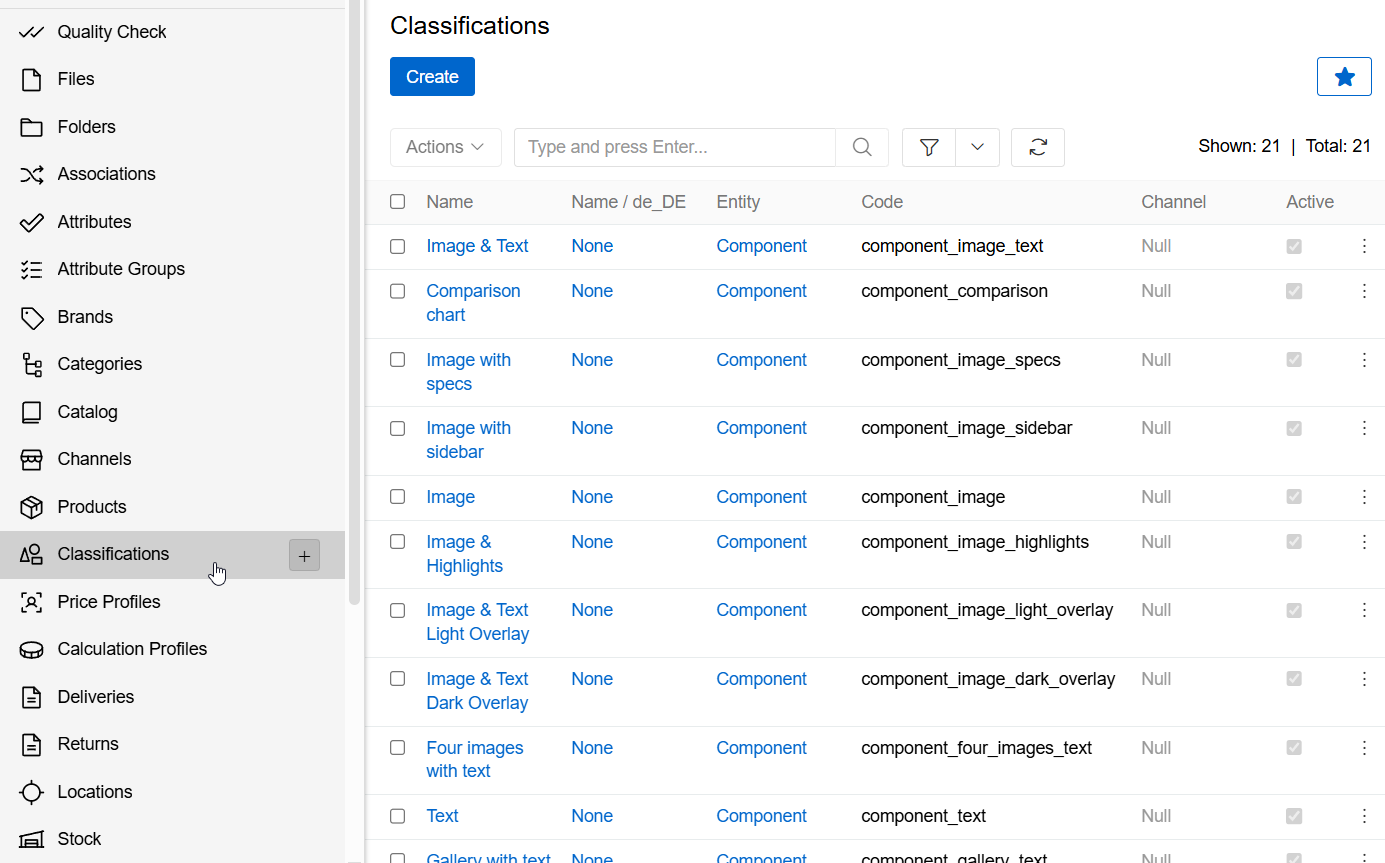
Navigate to Classifications in the navigation menu and click Create:
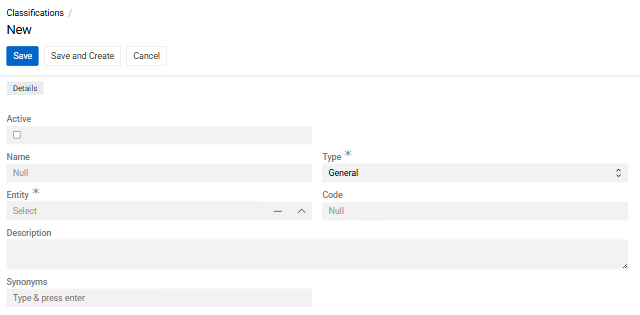
- Active — Whether the Classification is enabled and applied to records
- Name — Display name; supports multiple languages
- Entity — The entity this Classification applies to. For Listings a Channel field will also appear. Cannot be changed after creation.
- Code — Unique identifier consisting of lowercase letters, digits, and underscores
- Description — Optional description of the Classification's purpose; supports multiple languages
- Synonyms — Optional alternative names; supports multiple languages
Name Classifications clearly so it is obvious which attributes they contain. If names are similar, use the Description field to clarify the difference.
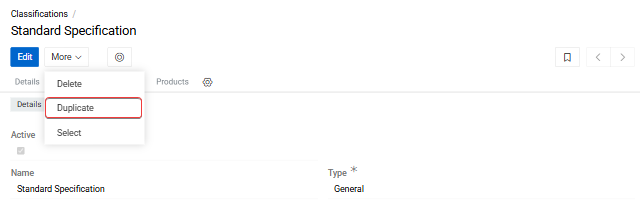
An existing Classification can be duplicated to use as a starting point — all attributes are copied. Unnecessary attributes can then be removed and new ones added.
Managing Classification Attributes
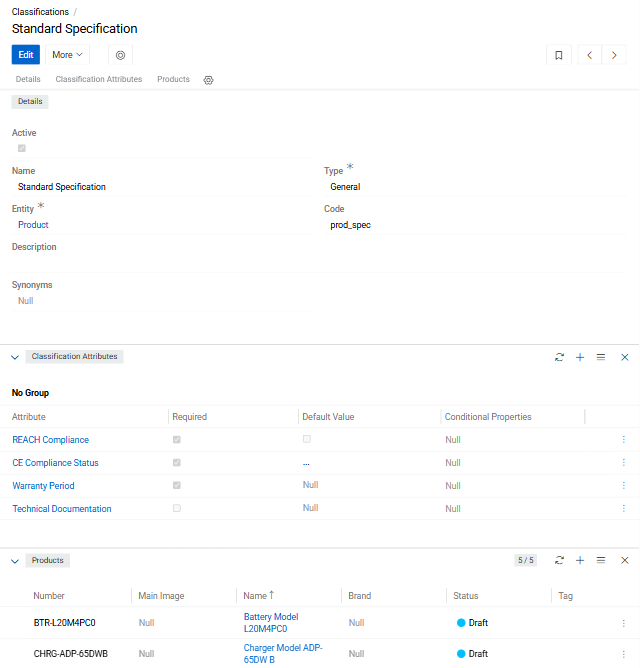
After saving, the detail view opens with two panels: Classification Attributes and Products.
Adding Attributes
Open the panel menu (three horizontal lines) in the Classification Attributes panel header to access the following options:
- Select Attribute(s) — opens a selection widget to choose one or more existing attributes
- Select Attribute Group — assigns all attributes belonging to an Attribute Group at once
Use the filter sidebar within each widget to narrow down the results.
To create and immediately link a new attribute, click the + icon in the panel header. The attribute creation widget will open — see Attribute Fields for field descriptions.
Only attributes linked to the same entity as the Classification are available for selection.
Attributes not assigned to any group appear under No Group at the bottom of the panel.
The panel displays the following columns:
- Attribute
- Required
- Default Value
Attribute Actions
Click the three-dot menu on any attribute row to access:
- View — opens the attribute's detail view
- Edit — opens an editor to configure classification-level settings, including whether the attribute is required, its default value, and any conditional properties (see Attribute Fields)
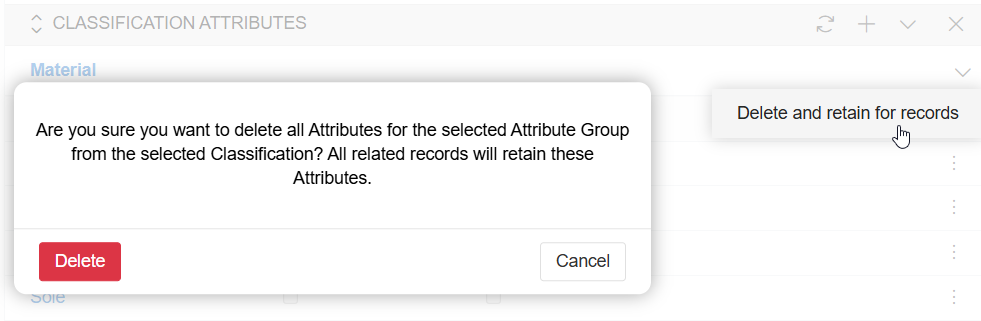
- Delete and retain for records — removes the attribute from the Classification but keeps it on existing records
- Delete and from records — removes the attribute from the Classification and from all linked records (requires confirmation)
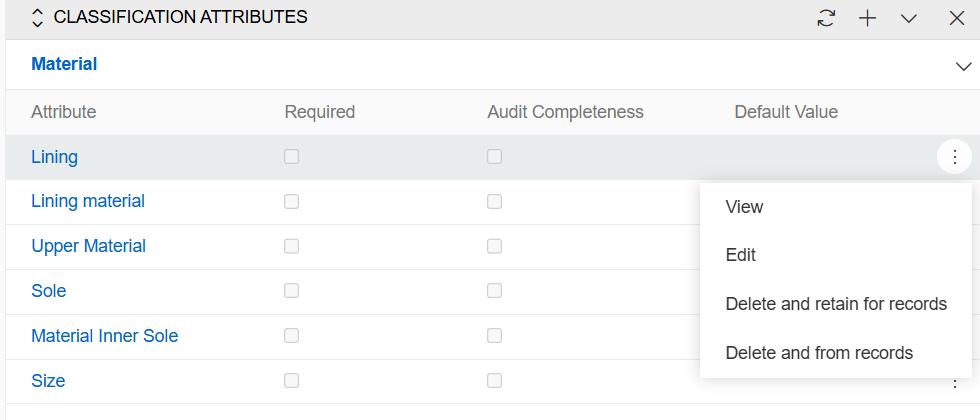
When an attribute is linked to a Classification, it is automatically linked to all records of that Classification. If the attribute already exists on a record, it becomes a Classification attribute and its existing value is preserved.
Classification attributes have higher priority than directly added record attributes. Changes to Classification attributes propagate to all linked records.
To unlink an entire Attribute Group, use Delete and retained for records from the group's actions menu:
Managing Linked Records
The Products panel (or the relevant entity panel) shows all records assigned to this Classification.
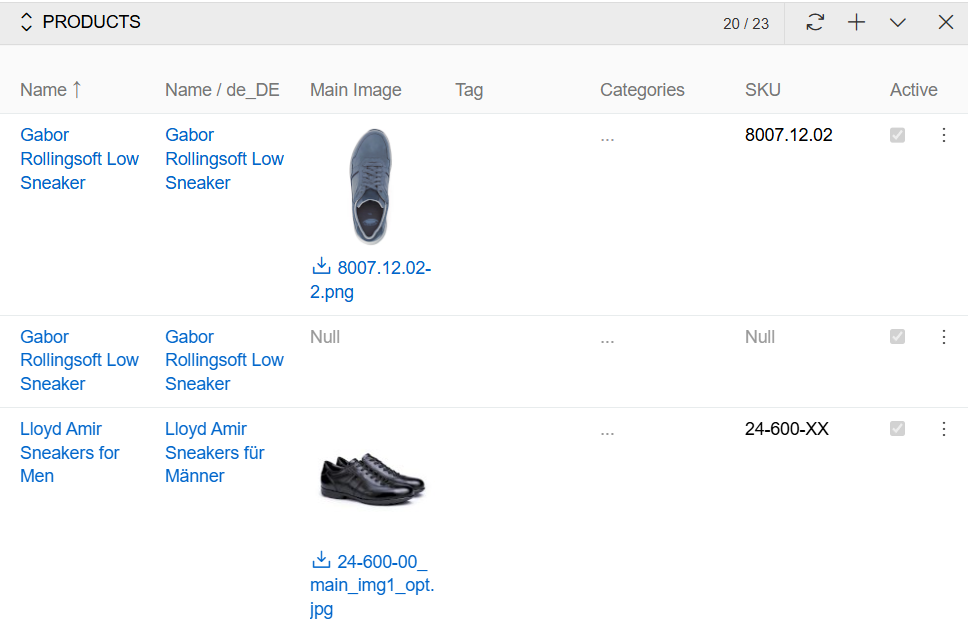
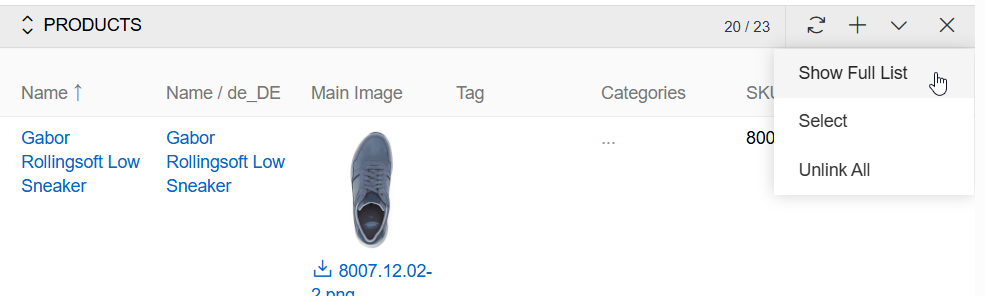
Use the + icon to create a new record directly within this Classification. Open the panel menu to Select existing records or use Unlink All to remove this Classification from all currently linked records.
Each record row supports: View, Edit, Unlink, Delete.
To see all linked records in a full list view pre-filtered by this Classification, use Show full list:
Enabling Classifications for an Entity
By default, Classifications are available for Products. To enable them for another entity, go to Administration > Entities, (see Entity Management) open the entity in edit mode, check Has Attributes, then check Has Classifications:
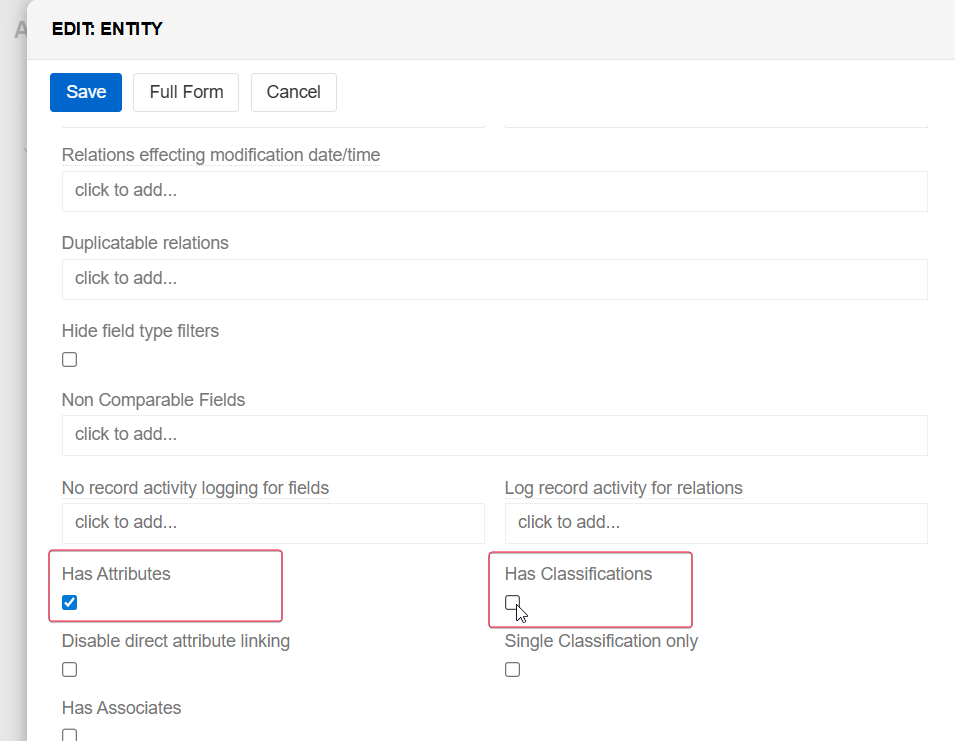
Once Has Classifications is enabled, the following additional options become available for that entity:
- Delete attribute values after unlinking classifications. When enabled, all Classification attribute values are removed from a record when that Classification is unlinked from it. When disabled, the attribute values are kept on the record even after the Classification is removed.
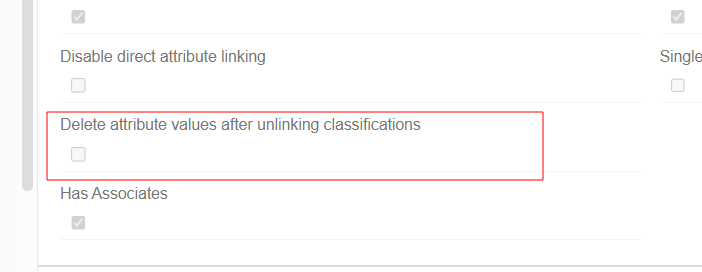
- Disable direct attribute linking. When enabled, attributes can only be added to records via a Classification — users cannot link attributes to records manually. This enforces that all attributes on a record come from an assigned Classification, which is useful when strict data governance is required.
- Single Classification only. When enabled, a record can be assigned to only one Classification at a time. Attempting to add a second Classification will replace the existing one. Use this when your data model requires exactly one classification template per record.
- Link Attributes with the Classification automatically. When enabled, if a user directly links an attribute to a record, and that record is already assigned to a Classification, the attribute will also be automatically added to that Classification. This keeps Classifications in sync with attributes that editors add on individual records. This option is only available when Has Attributes is enabled and Disable direct attribute linking is disabled.