Actions in AtroCore are automated operations that can be executed manually through the user interface or automatically via scheduled jobs and workflows. They provide a powerful framework for automating business processes, data transformations, integrations, and AI-powered operations.
Key Features
- Flexible Execution: Actions can be triggered manually, automatically via workflows, or through scheduled jobs
- Entity-Specific: Actions can be configured to work with specific entities (Products, Files, etc.)
- User Context: Actions can execute as the system user or maintain the same user context
- Conditional Logic: Actions support both basic and script-based condition types
- Data Integration: Seamless integration with import feeds and export feeds
Creating and Configuring Actions
Accessing Actions
Navigate to Administration > Actions to manage all configured actions in your system.
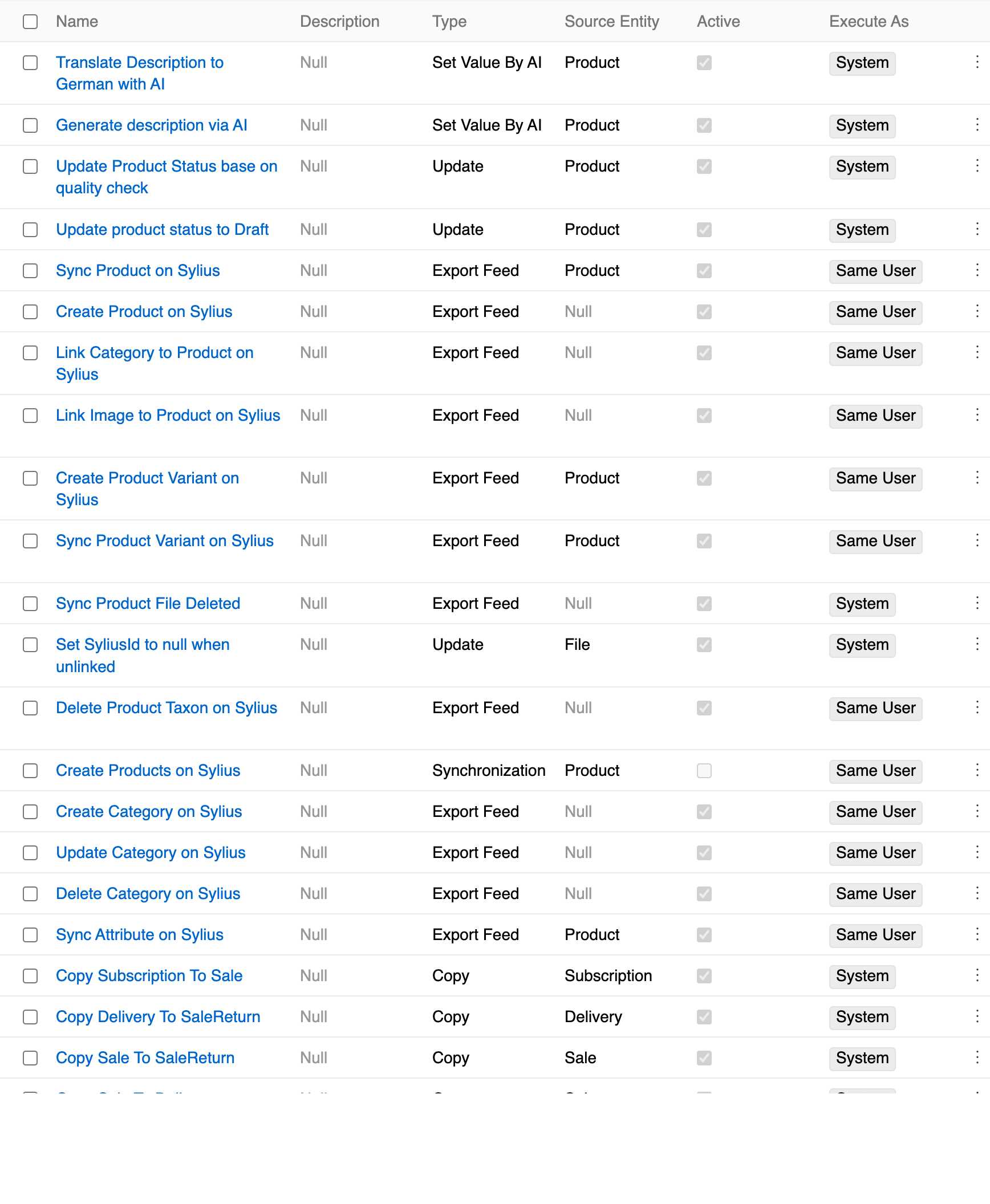
Basic Configuration
All actions share these common configuration fields:
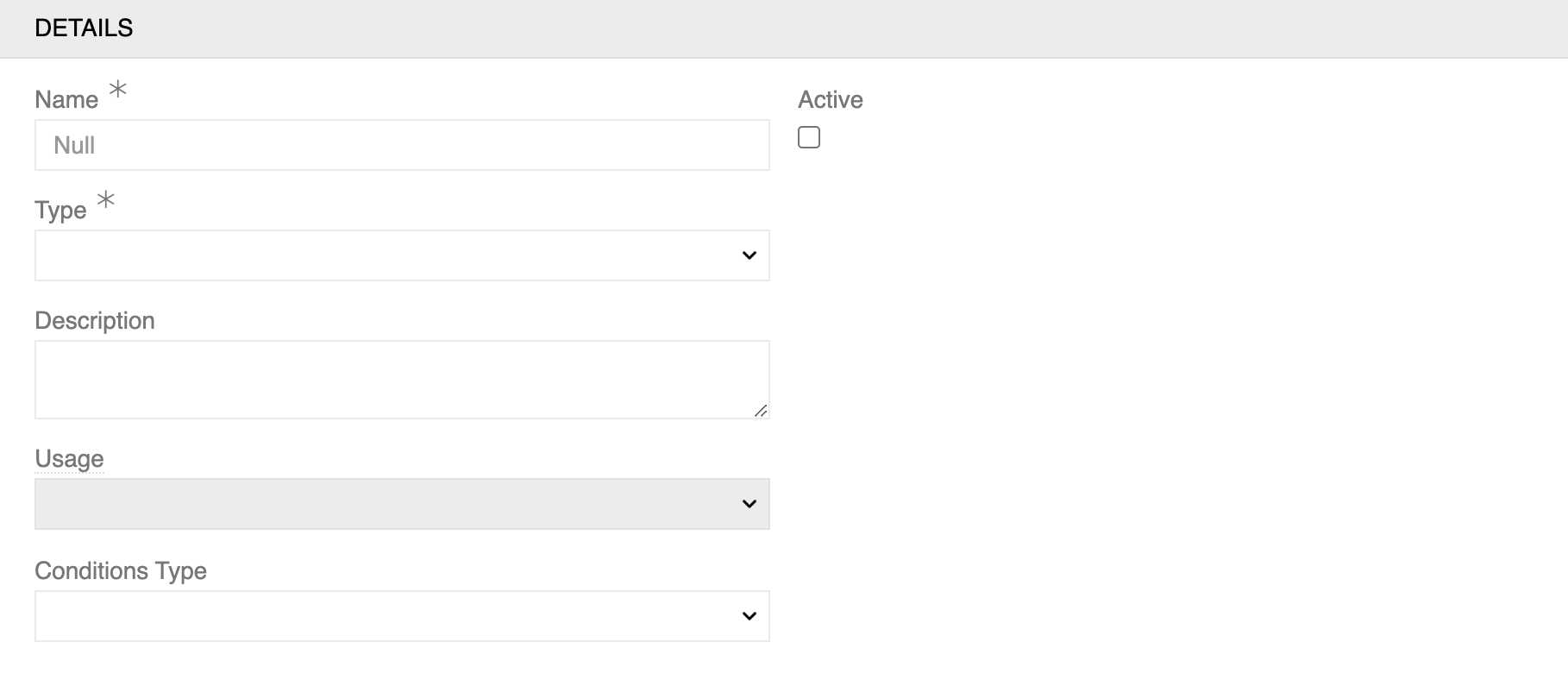
- Name: Descriptive name for the action
- Type: The specific action type (see Action Types section below)
- Usage: Defines the action scope. Some usage types are applicable only to specific action types:
- Entity action button: Applies to entire entity types
- Record action button: Applies to individual records
- Field action button: Applies to specific entity fields
- On record load: Applies to individual records when the page loads
- Conditions Type: How conditions are evaluated:
- Basic: Simple condition builder
- Script: Custom script conditions following Twig syntax
- Active: Whether the action is enabled
-
Execute As: Specifies the user context in which the action is executed:
- System: Runs with system-level permissions.
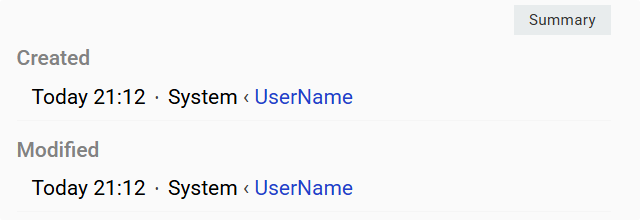
- Same User: Runs with current user permissions. When selected, the corresponding user appears as a link following System in the Modified field for changed records and in the Created field for newly created records in the Summary panel of the Side View for changed records.
When Usage is selected (any non-empty option), an additional Source Entity field appears to specify which entity the action targets.
Entity action button:
- Display (Single, Dropdown): Defines how the action button appears on the list view header.
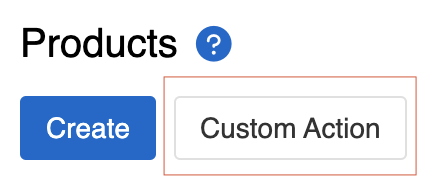
Single shows a direct button on the list view header.
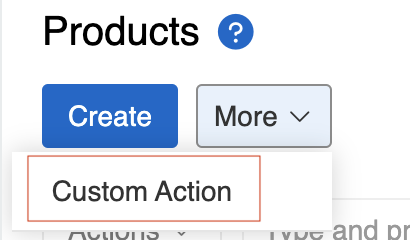
Dropdown groups the action in a dropdown menu.
Record action button:
- Display (Single, Dropdown): Defines action button on detail view (also available as single record action in list view)
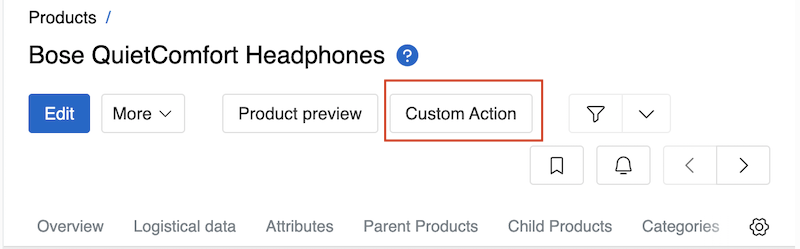
Single shows a direct button on the detail view.
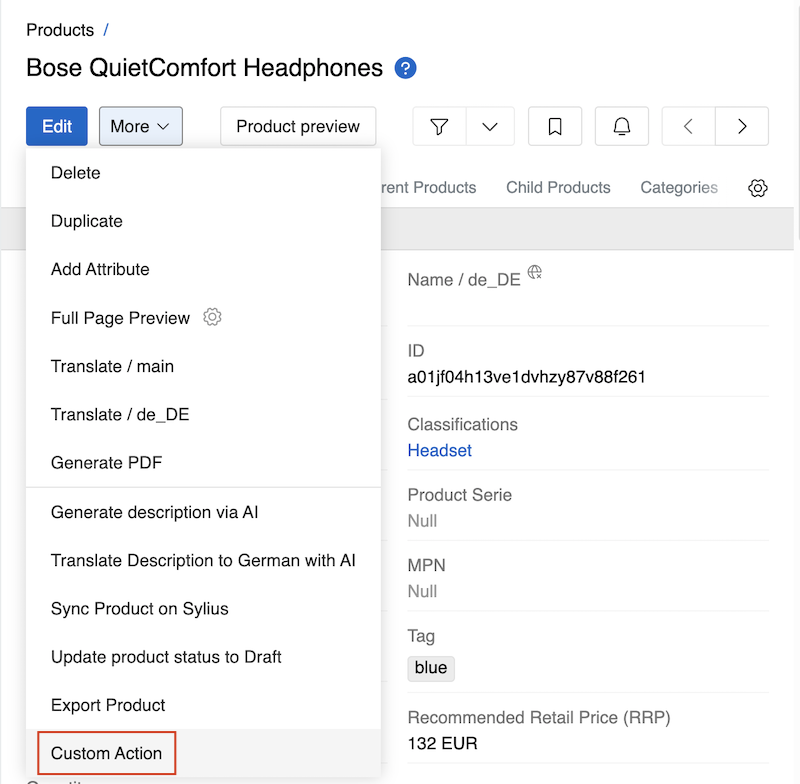
Dropdown groups the action in a dropdown menu on the detail view.
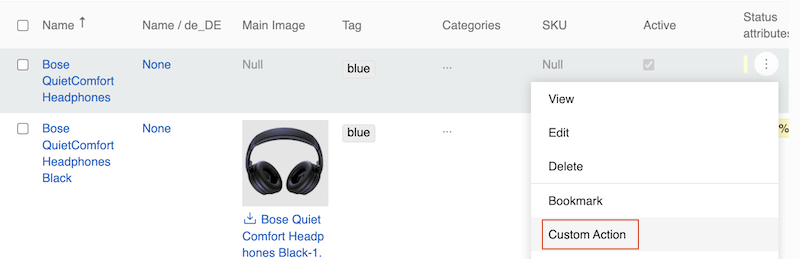
Actions are also available as single record actions in list views.
- Mass actions: Checkbox to determine if the action will be available as mass action
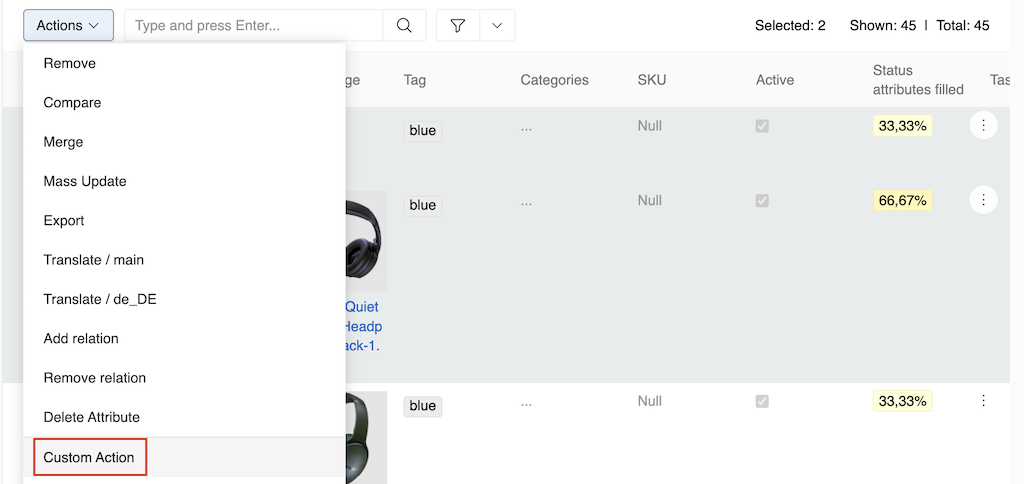
When enabled, actions appear in the mass actions menu for selected records. Read Mass actions for more information.
Field action button:
- Field: Defines which field the action button will be shown near on detail view
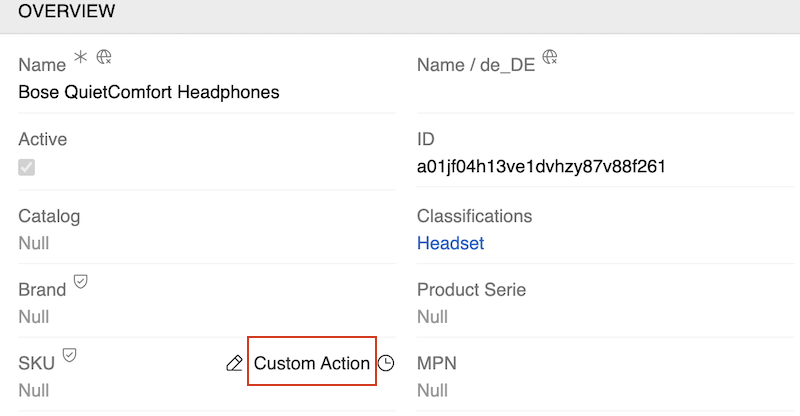
Field action buttons appear as buttons next to specific fields on detail pages and are shown when you hover over the field.
Action Icons
Actions in AtroCore support optional icon assignments to improve usability and visual identification.

The Icon field is optional.
- No icon selected – The action is displayed using only its Action Name.
- Icon selected – The action is displayed using the selected icon, followed by the Action Name (consistent with system-defined actions).
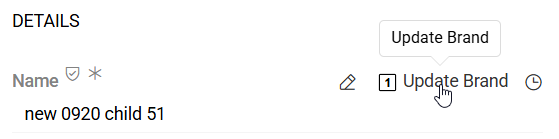
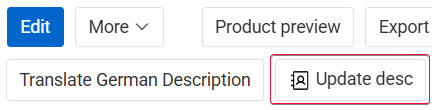
When an icon is selected, an additional configuration option becomes available:
- Hide Text Label on the Button (checkbox)
- This checkbox is visible only if an icon has been selected.
- When enabled, the action is rendered using the icon only, without the Action Name.
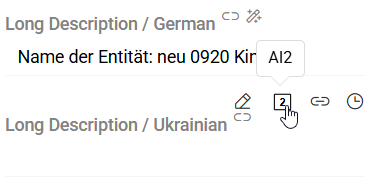
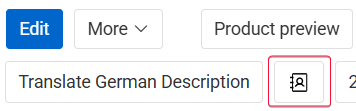
This behavior applies uniformly to all action types. All action types follow the same rules for icon selection, label visibility, and rendering logic.
Parameters Panel
Some Action Types provide an additional Parameters panel that includes a mandatory field named Update Type * or in some cases Mode. This field allows the user to select one of two configuration modes: Basic (UI-based configuration) or Script (JSON-based configuration).
This dual-mode approach provides both ease of use for standard configurations and flexibility for advanced, script-driven scenarios.
Script
When Script option is selected, field values are defined using JSON code:
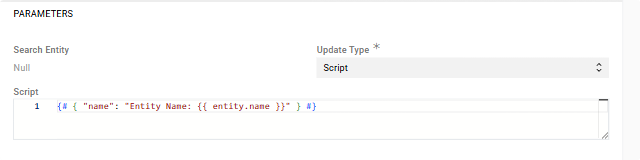
- Define field values using JSON syntax with key-value pairs
- Support for Twig templating syntax using
{{ entity.fieldName }}expressions - All configuration is done in the Script field
- Provides flexibility for complex field mapping and dynamic values
Script Helper
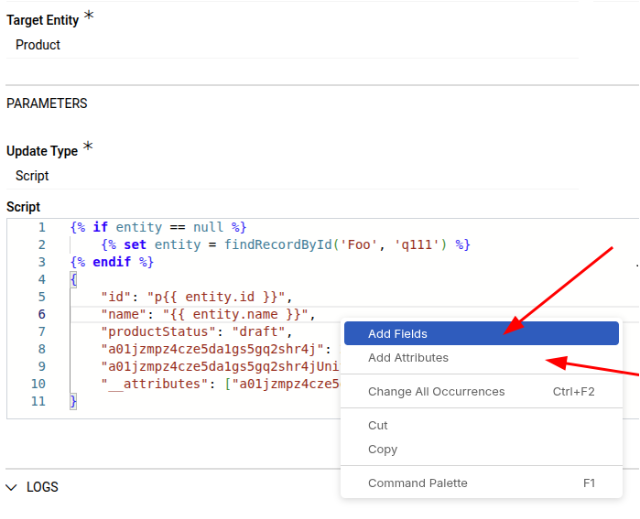
When working in the script editor, right-click anywhere in the editor area to open a context menu with helpful options for quickly adding entity fields or attributes to your script. The context menu provides Add Fields for inserting standard entity fields and Add Attributes for inserting custom attributes, making script creation faster and reducing errors from manual typing.
Basic
When Basic option is selected, the configuration is performed through a dedicated panel in the user interface. This panel enables users to define behavior without writing scripts.
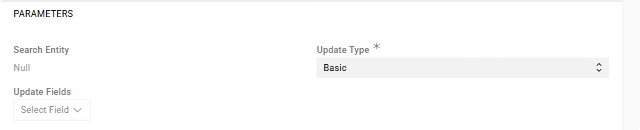
- Use Select Field to add new fields to the creation template
- Set specific values for each field that will be applied to all created records
- Required fields are marked with an asterisk (*)
Executing Actions
Manual Execution
Actions can be executed manually through the user interface:
- Direct execution: Use the Execute button available on the action's detail page
- Entity-level actions: Available on list view headers based on Display configuration
- Record-level actions: Available on detail pages and as single record actions in list views
- Field-level actions: Available as buttons next to specific fields on detail pages
- Mass actions: Available for multiple selected records when Mass Action is enabled
Automatic Execution
Actions can be triggered automatically through:
- Workflows: Event-driven execution based on entity changes
- Scheduled Jobs: Time-based execution at regular intervals
Monitoring Actions
AtroCore provides comprehensive monitoring capabilities for action executions, allowing you to track performance and review results. Use Job Manager and Action History in Administration to monitor action execution and track their results.
More detailed information for Import and Export actions can be found in the related Feed documentation, such as Import Feed and Export Feed.
Action Execution Panel
Action Execution records are automatically created by the system whenever an action runs, and they have specific access restrictions to maintain data integrity.
Each action has an Execution panel on its detail page that displays recent execution history. This panel provides quick access to monitor how the action has been performing over time.
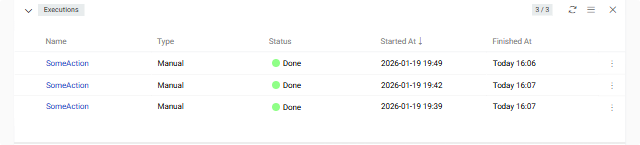
From the Execution panel menu, you can select Show List to view all executions automatically filtered for this specific action. This opens a comprehensive list showing key information for each execution including the execution name, how it was triggered (manually, by scheduled job, incoming webhook, or through a workflow), the current status, and when it started and finished.
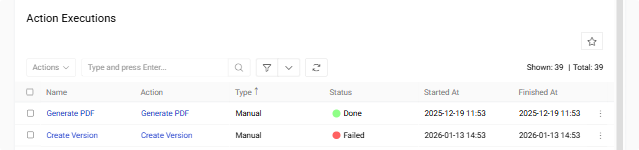
Click on any execution name to open its detail view and see complete information about that specific run. The execution detail page provides comprehensive insights into what happened during the execution:
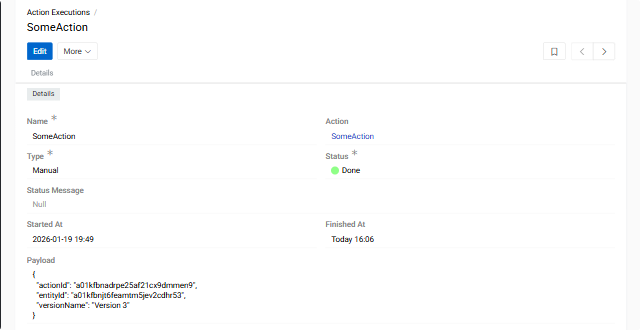
- Name: Auto-generated execution identifier.
- Action: Link to the source action.
- Type: Execution trigger (Manual, Scheduled Job, Incoming Webhook or Workflow).
- Status:Current state (Done, Failed, In Progress).
- Status Message: Additional details or error information.
- Started At / Finished At: Execution timestamps.
- Payload:Execution parameters and configuration data using Script.
Action executions move through different states during their lifecycle and have the following states:
- Done:Execution completed successfully
- Failed:Execution encountered an error and could not complete
- In Progress:Currently executing
For editing, access is limited to the Name field only, both through the user interface.This restriction applies uniformly to ensure that execution data remains accurate. Action Execution is a Base type entity, meaning records are not auto-deleted. Users with appropriate permissions can delete execution records, allowing you to manage your execution history according to your organization's data retention policies.
Action Execution Logs
For actions that perform data operations such as Create, Update, Delete, or Create or Update, the system maintains detailed logs showing individual record-level operations. These logs are essential for understanding exactly what happened during an execution and troubleshooting any issues at the record level.
Action Execution Logsare read-only and implemented as an Archive entity type.
From the Execution panel, use the context menu of the execution record and select All Logs.
Each Action Execution Logs records provides detailed information about individual operations.
- ID:Unique log entry identifier
- Action Execution: Execution reference.
- Type: Action type performed.
- Entity Name: Target entity type.
- Entity Record: Specific record affected (click to open).
- Message: Error details or additional information.
- Created At: When the operation was logged.
Action Types
Some Action Types are provided by default, while others become available through additional modules, including both commercial and free extensions.
AtroCore supports various action types, each designed for specific automation scenarios. Below are all available action types and their configurations:
Data Operations
Create
Available with the base AtroCore installation.
Creates new records in the system based on defined templates. This action can be used either within a Workflow or independently.
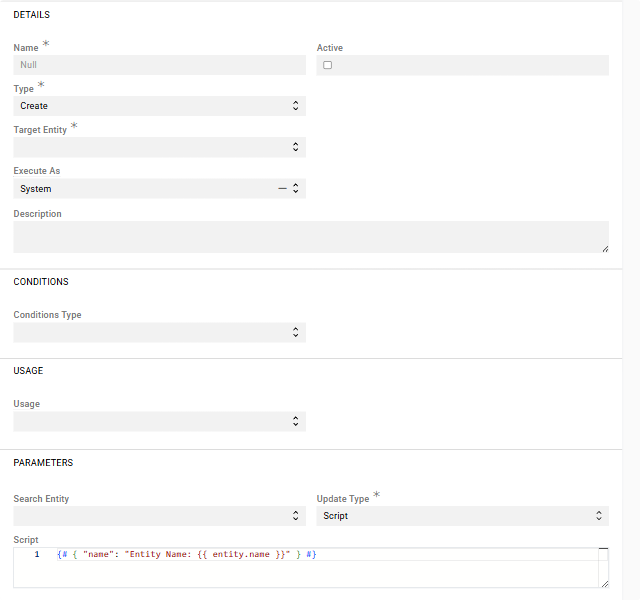
Configuration:
- Target Entity: Entity type for new records
- Update Type: Method for record creation (Basic or Script)
- Search Entity: Defines the source entity used for bulk record creation based on filtered search results.
Update
Available with the base AtroCore installation.
Modifies existing records based on specified criteria and field values.
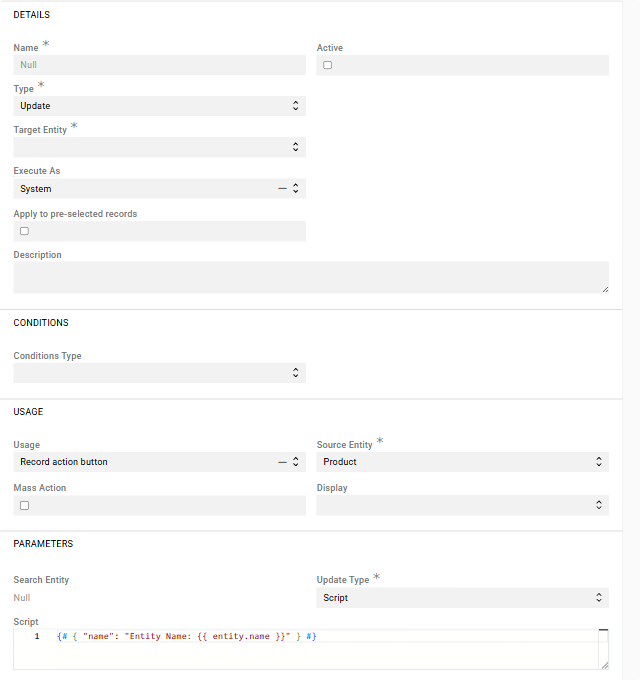
Configuration:
- Target Entity: Entity type for records to update
- Update Type: Method for record updating (Basic or Script)
- Apply to pre-selected records: Defines the action scope:
- Checked: Action operates only on the specific record it was triggered from. Source Entity becomes locked to match Target Entity, and Filter Result panel is not available.
- Unchecked: Action can target different entities and use filtering criteria. For example, Source Entity can be "Brand" while the action updates all "Products" associated with that brand.
- Filter Result: Available only when "Apply to pre-selected records" is unchecked. Define which records should be updated based on specific criteria and query conditions - see Search and Filtering for details
Create or Update
Available with the base AtroCore installation.
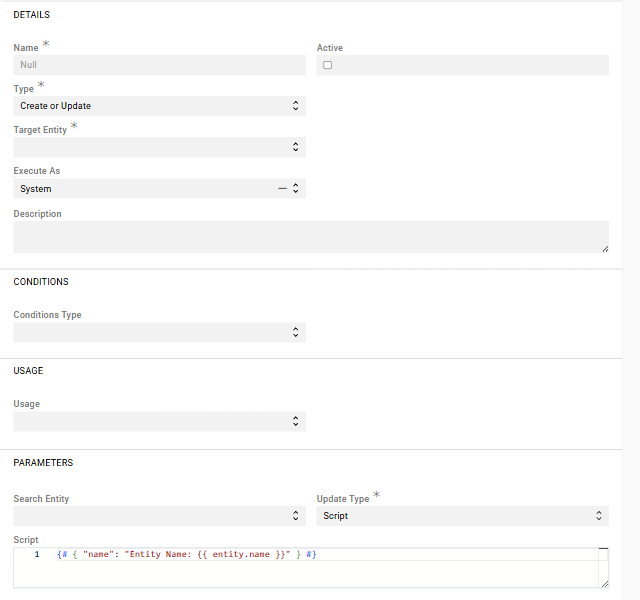
Create or Update extends the standard Create action by supporting both record creation and record updates. It creates new records or updates existing ones when matching entries already exist in the system, based on the defined templates. This action supports both Script and Basic types.
Delete
Available with the base AtroCore installation.
Removes records from the system based on specified criteria.
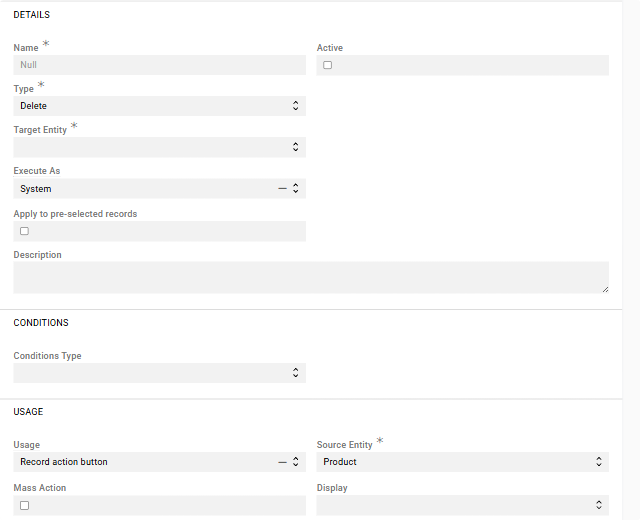
Configuration:
- Target Entity: Entity type for records to delete
- Apply to pre-selected records: Defines the action scope:
- Checked: Action deletes only the specific record it was triggered from. Source Entity becomes locked to match Target Entity, and Filter Result panel is not available.
- Unchecked: Action can target different entities and use filtering criteria. For example, Source Entity can be "Category" while the action deletes all "Products" filtered by that category.
- Filter Result: Available only when "Apply to pre-selected records" is unchecked. Define which records should be deleted using query conditions - see Search and Filtering for details
Upsert
Available with Workflow module.
Creates new records or updates existing ones based on matching criteria.
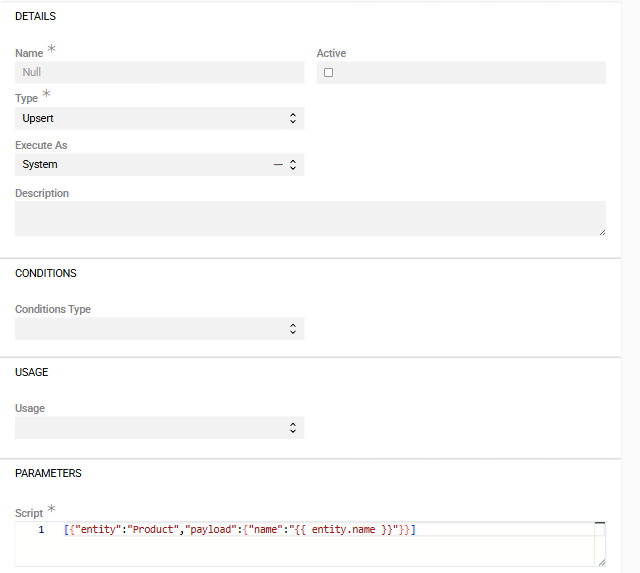
Configuration: defining entity mappings and field values with only Script as Parameters and uses array syntax with entity/payload structure.
Example JSON Configuration:
[{"entity":"Product","payload":{"name":"{{ entity.name }}"}}]Extended example:
[
  {
    "entity": "Product",
    "payload": {
      "name": "Apple iPhone 15",
      "sku": "iphone15"
    }
  },
  {
    "entity": "Product",
    "payload": {
      "id": "2348924928743",
      "name": "Apple iPhone 15 Pro Max"
    }
  }
]
The system attempts to find existing entities using identifier or unique fields. If found, records are updated; otherwise new records are created.
Create Version
Available with Revisions module.
Customizes the creation of record snapshots with configurable version naming. This allows tracking changes and comparing current records with previously saved versions.
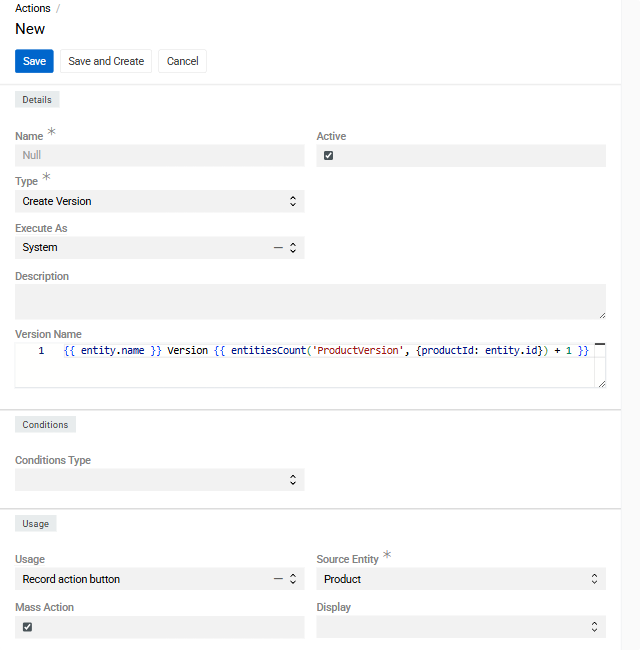
Key Features:
- Version names must be unique within the same record
- Versions are read-only and cannot be modified or deleted individually
- Use the
Compare Versionsaction to view differences between versions
Versioning must be enabled for the source entity.
Configuration:
- Source Entity: Entity type for which versions will be created
- Version Name: Script template for automatically generating version names. Leave empty to set names manually
The system creates the Create Version action. For this type of action, we recommend only changing the Version Name field.
Create Change Request
Available with Revisions module.
Customizes the creation of record snapshots with configurable version naming. It enables users to create snapshots of a record at specific points in time. Users can then develop the record and its snapshot as separate entities, with the option of merging them into one eventually.
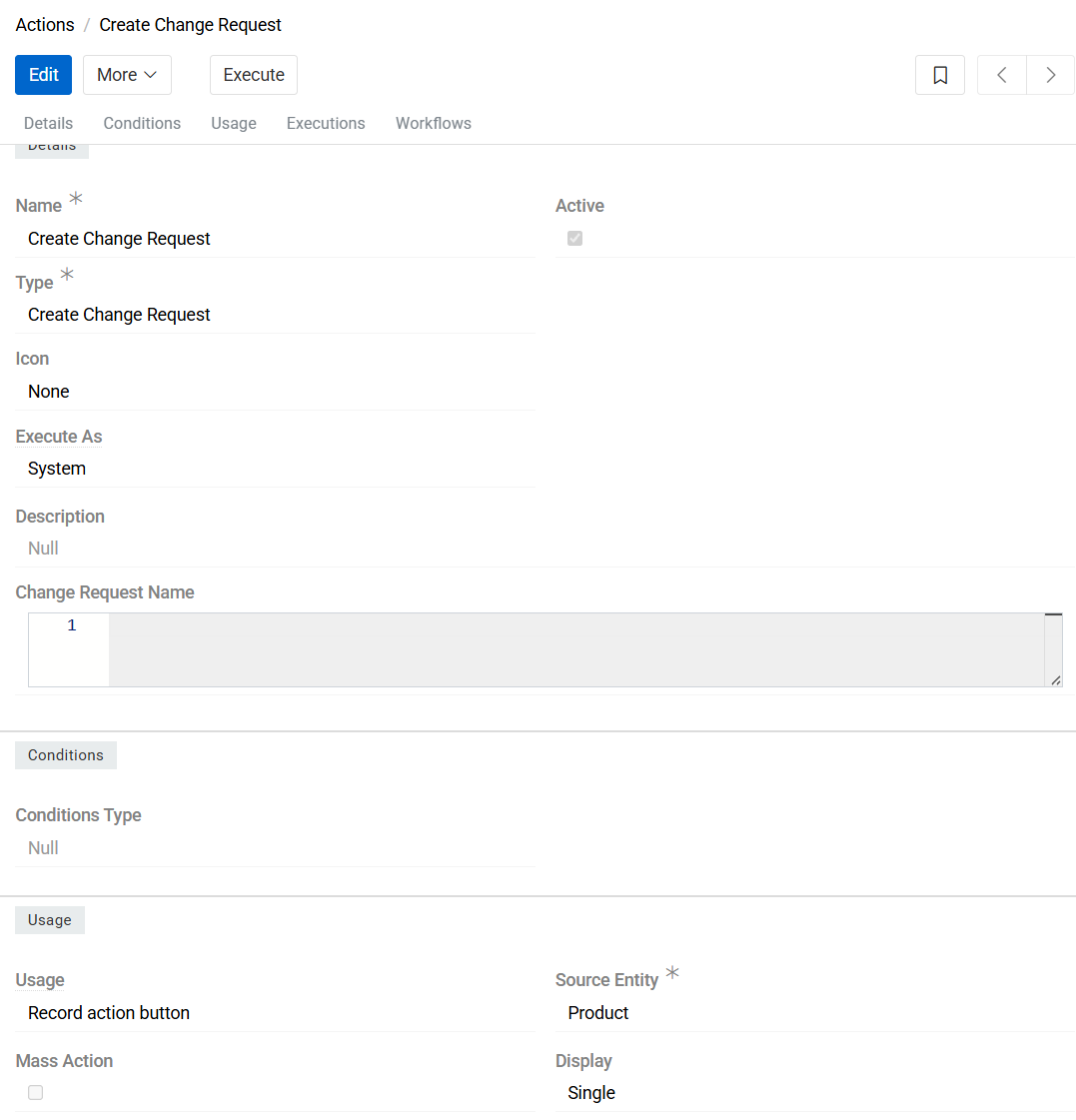
Key Features:
- Change Request names must be unique within the same record
- Use the Change Requests tab in Insights panel to view and edit different change requests
Change Requests must be enabled for the source entity.
Configuration:
- Source Entity: Entity type for which change requests will be created
- Change Request Name: Script template for automatically generating change request names. Leave empty to set names manually
The system creates the Create Change Request action. For this type of action, we recommend only changing the Change Request Name field.
Suggest value
Suggests modifications for existing records based on defined templates. The user can then modify the result. These suggested values only appear in the front end and must be saved manually.
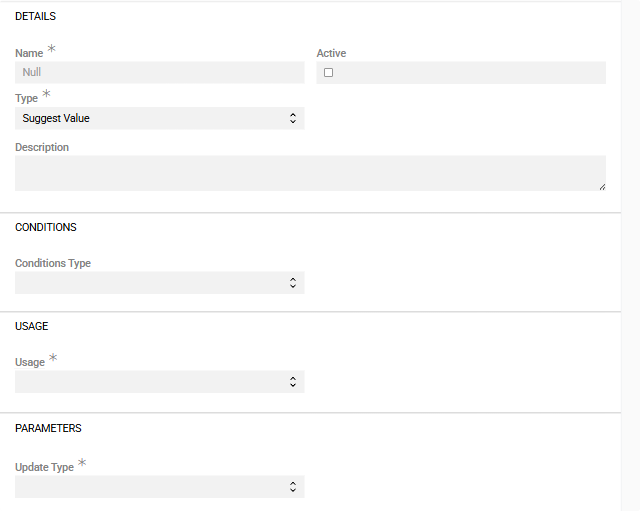
Configuration:
- Source Entity: Entity type for records
- Update Type: Method for record updating (Basic or Script)
- Usage: Defines when the suggestion is displayed
- On field focus: Displays when user focuses on the field during record editing or inline editing
- On field change: Automatically triggers when the value of the specified field is modified
- On record create / update: Displays when creating a new record or updating an existing record
When using Script Mode for Suggest value action additional Twig functions are available:
- "uiRecord": Record data array. Variable contains data that you have on frontend side,
- "uiRecordFromName": The name of the entity from which you open current entity,
- "uiRecordFrom": Record data array of the entity from which you open current entity.
Suggest value by AI
Available with AI Integration module.
It uses the same method as Suggest value action type but uses AI for the suggested data. For implementation details and usage, refer to the AI Integration documentation.
Set value by AI
Available with AI Integration module.
It uses the same method as Update action type but uses AI for the suggested data.For related behavior and configuration, see the AI Integration documentation.
Copy
Duplicates existing records to create new copies.
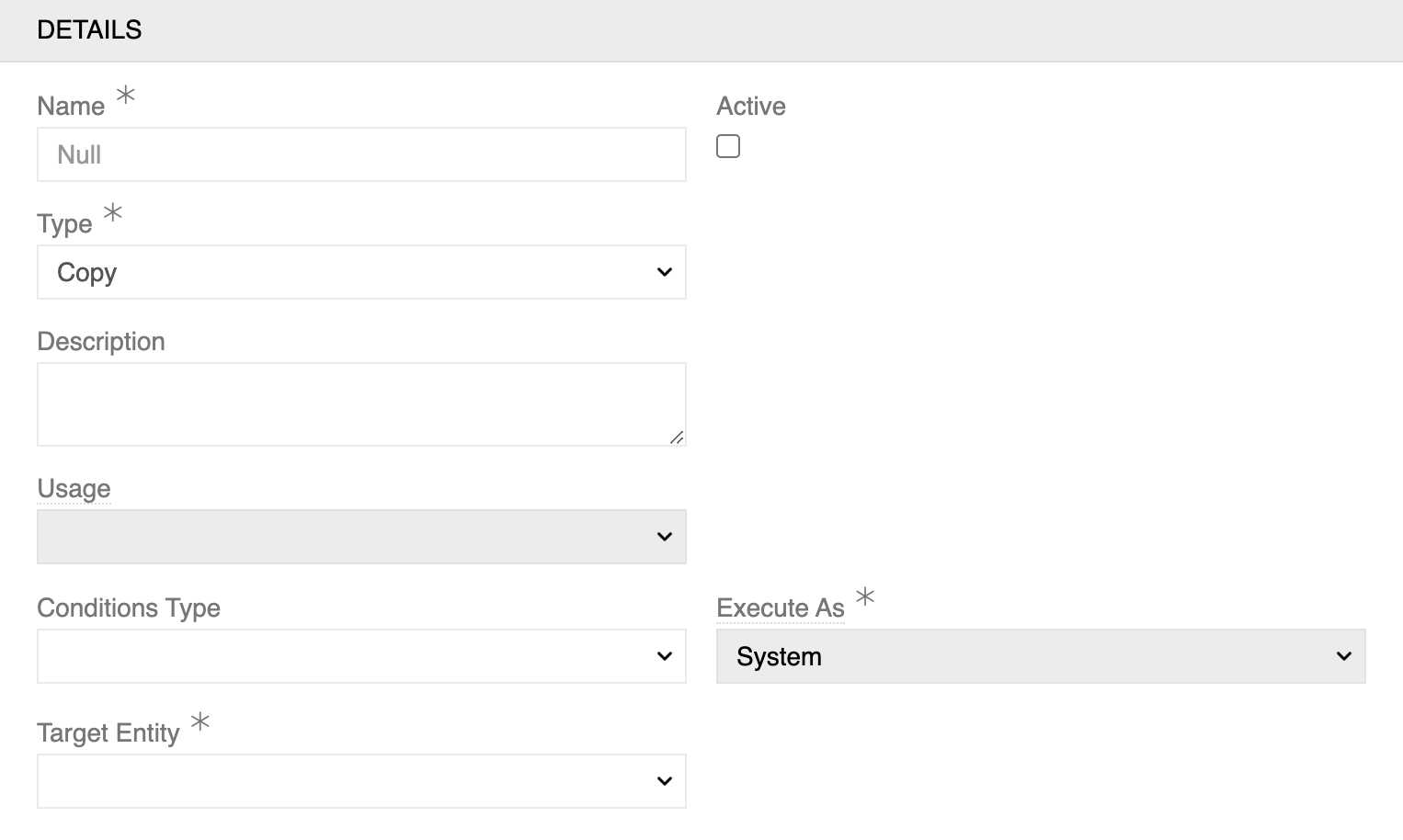
Configuration:
- Target Entity: Entity type to copy
Data Exchange
Webhook
Available with the base AtroCore installation.
Sends HTTP requests (GET) to external systems for integration purposes.
While this action type can organize outgoing webhook calls, consider using Export Feeds instead for more flexible and powerful outbound HTTP integration.
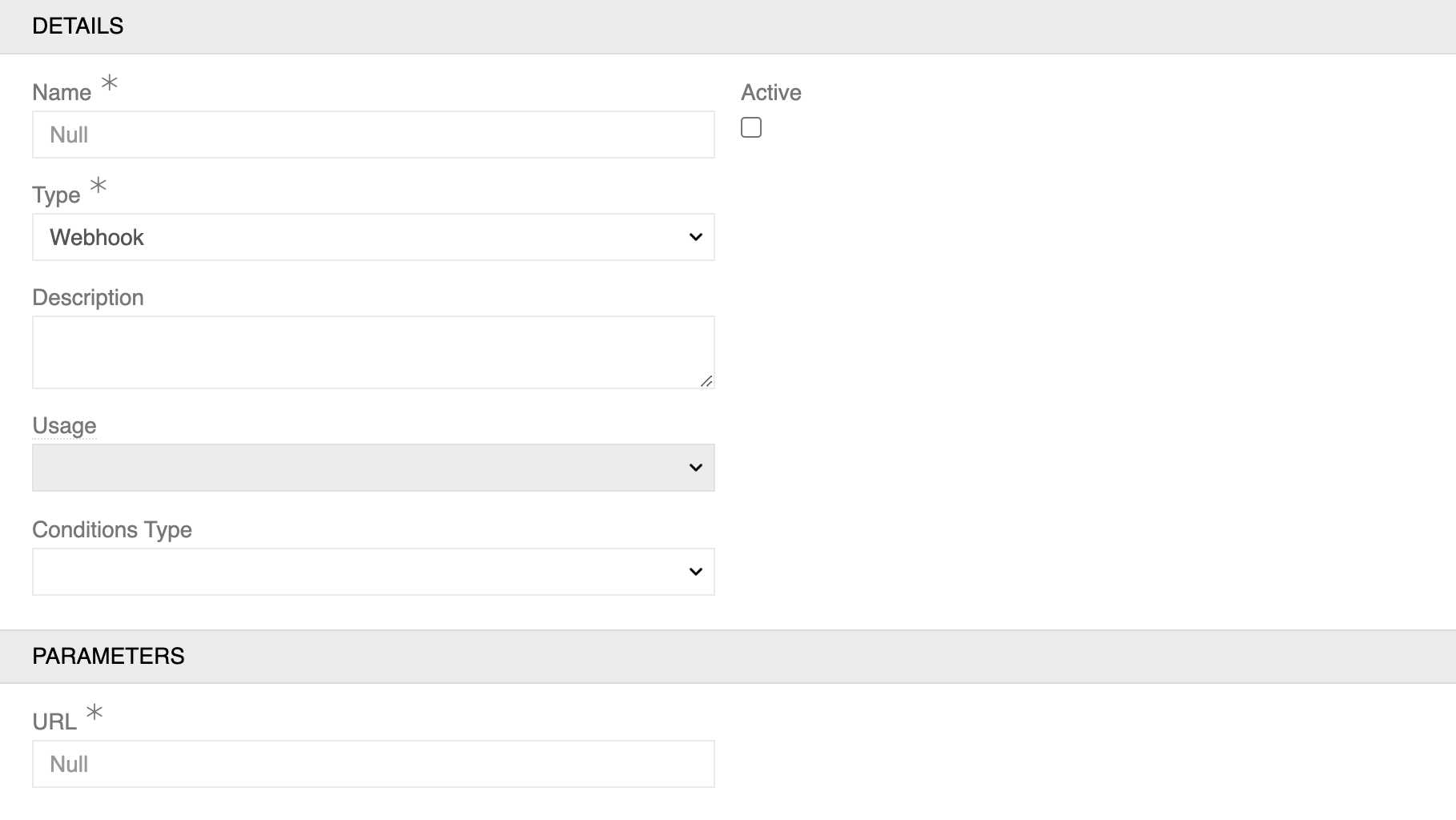
Configuration:
- URL: Target endpoint for the webhook request
Import Feed
Imports data from external sources using configured import feeds.
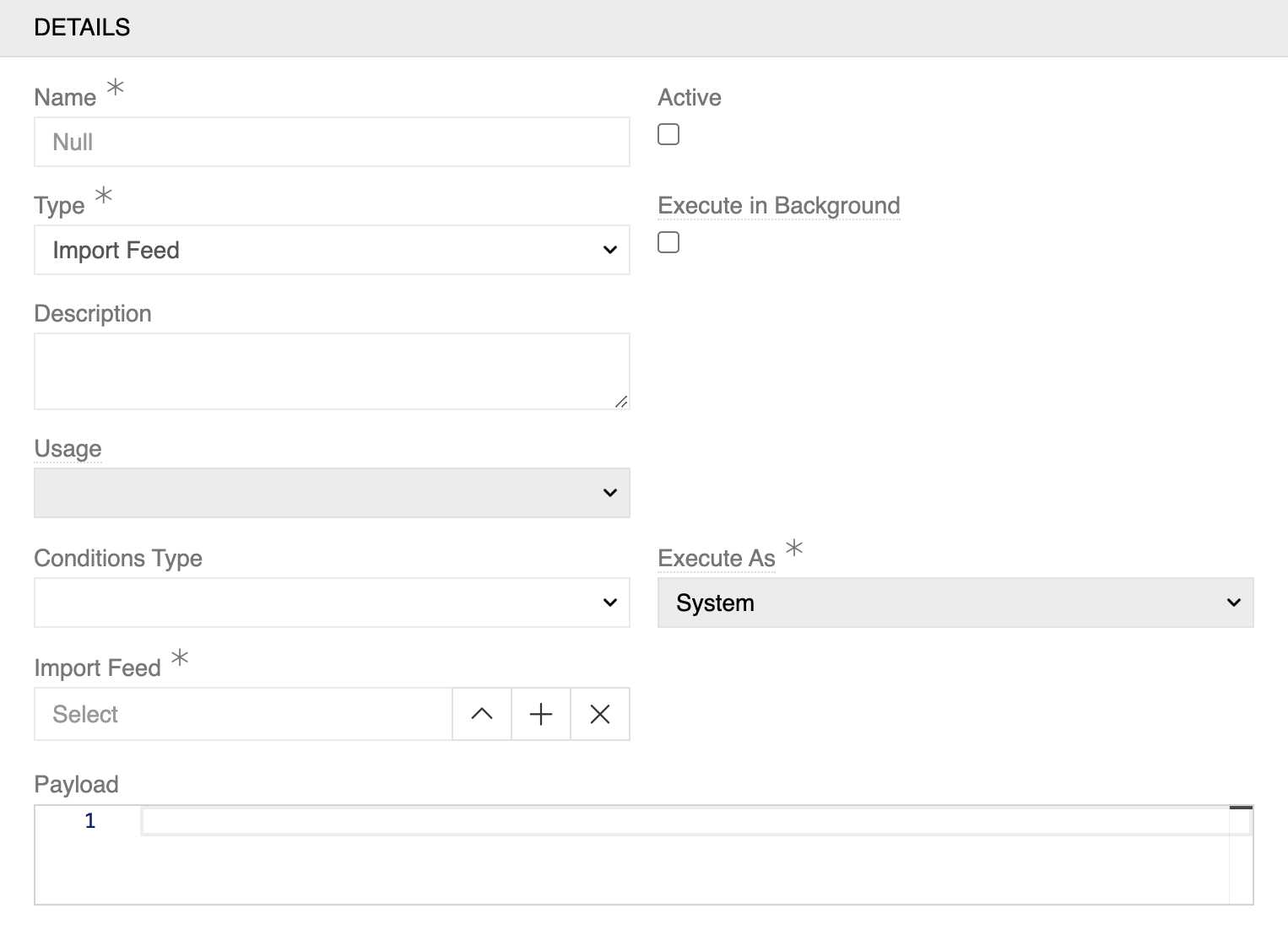
Configuration:
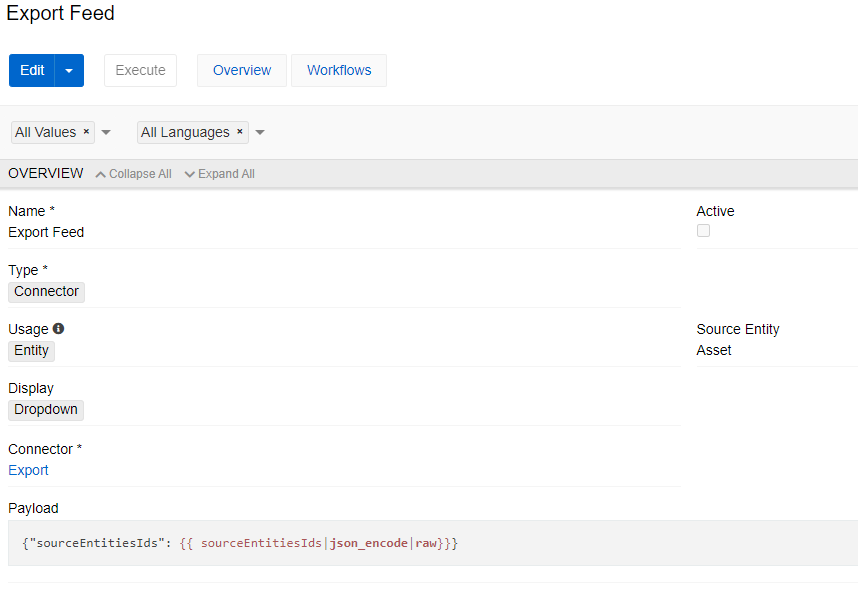
- Execute in Background: Option to run import as background process
- Import Feed: Selection of configured import feed
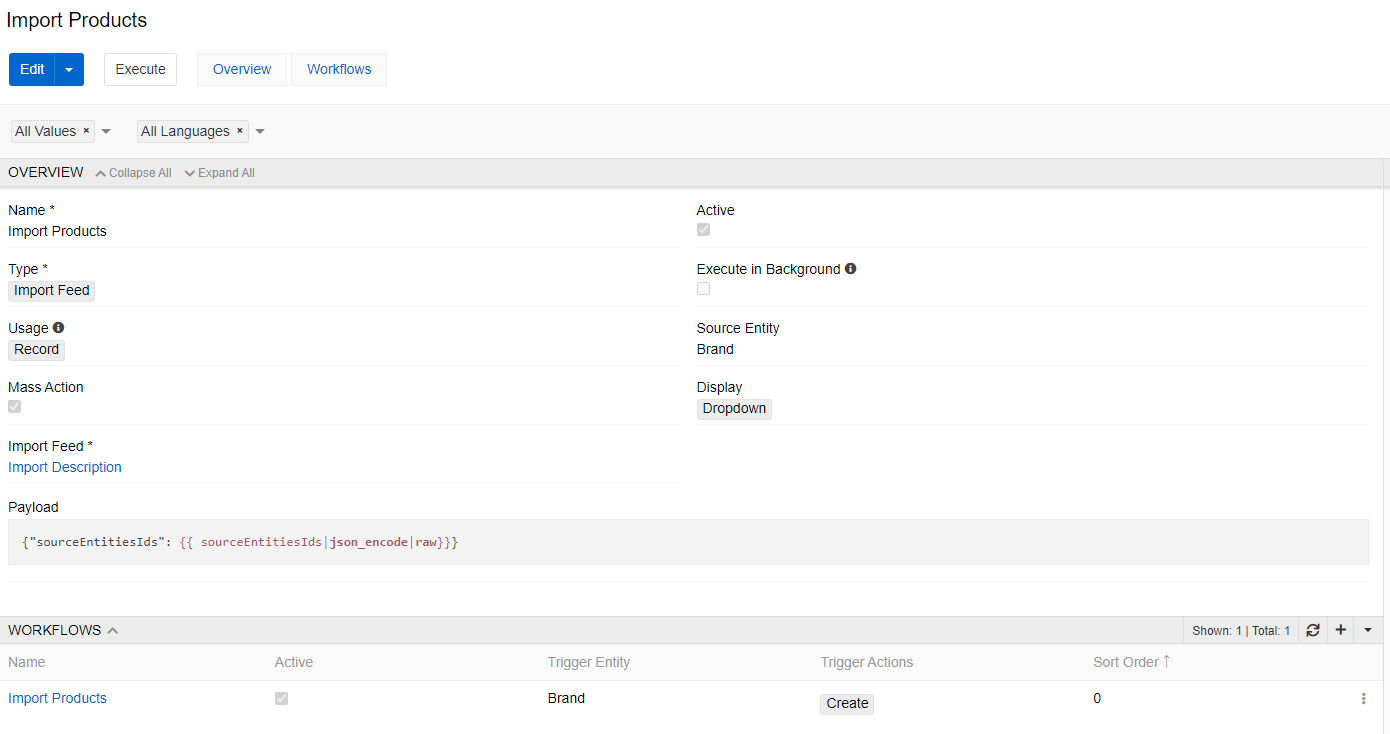
- Payload: Custom data payload for the import with Twig templating syntax
For example, in the image below script {"sourceEntitiesIds": {{ sourceEntitiesIds|json_encode|raw}}} states that only selected records are to be executed.
Export Feed
Exports data to external destinations using configured export feeds.
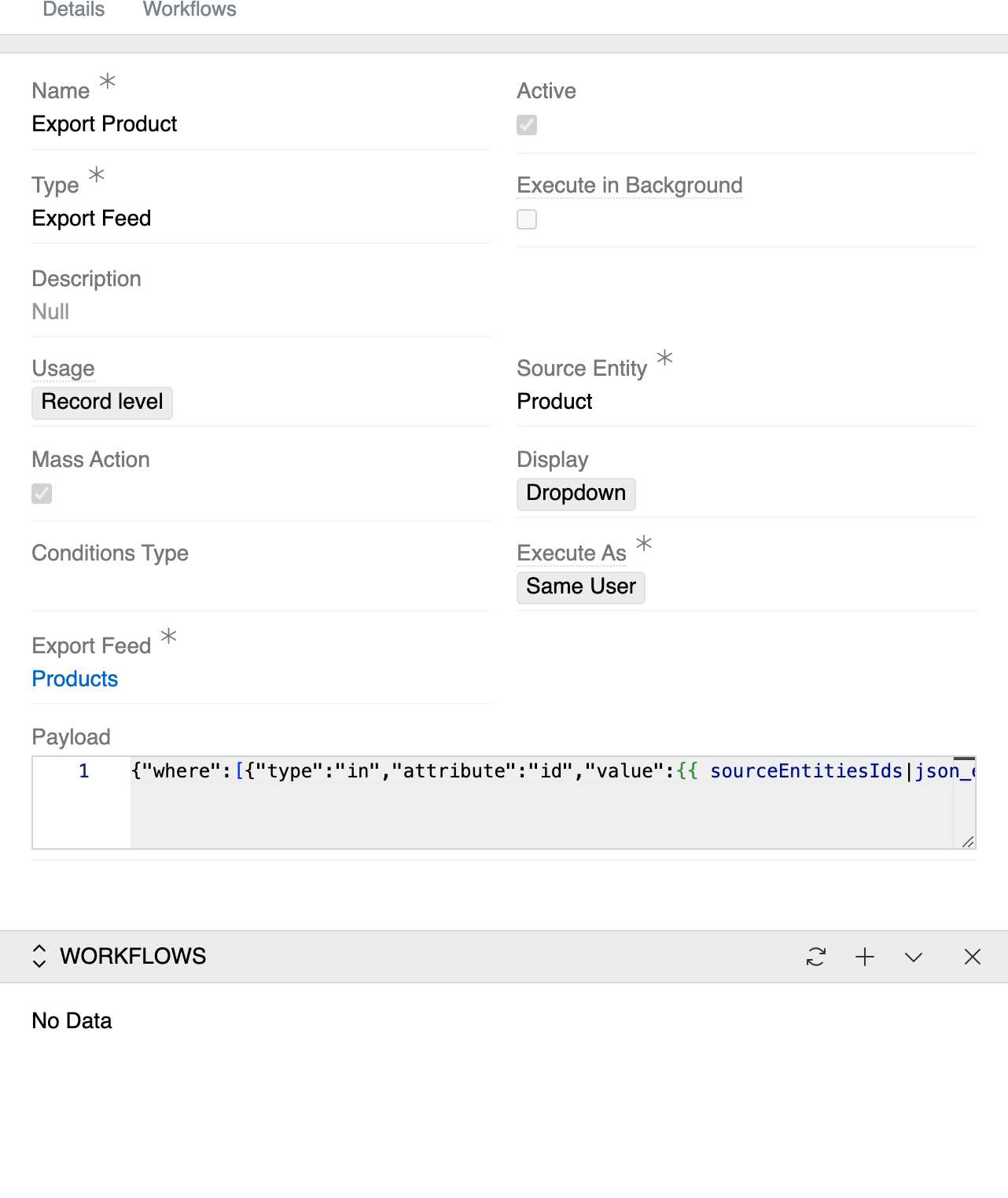
Configuration:
- Execute in Background: Option to run export as background process
- Export Feed: Links to a specific Export Feed entity that defines the export format, destination, and data mapping
- Payload: Custom data payload for the export with Twig templating syntax
For example, the payload filters all attributes by their ids and transfers to the export only the attribute whose ID matches the triggering record:
{
  "where": [
    {
      "type": "in",
      "attribute": "id",
      "value": [
        "{{ entity.id }}"
      ]
    }
  ]
}
Synchronization
Available with Synchronization module
Synchronizes data between AtroCore and external systems.
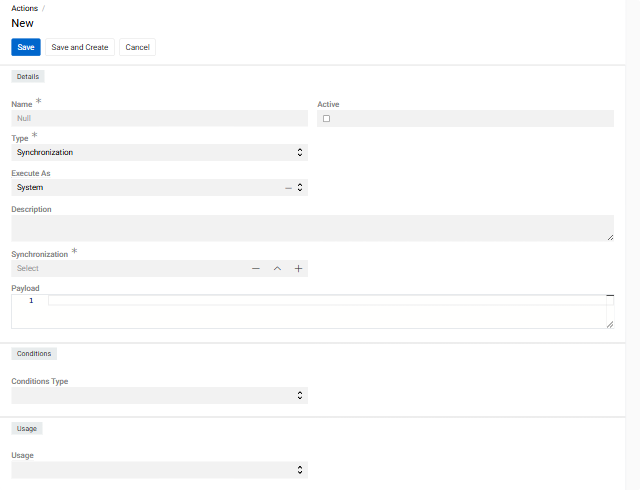
Configuration:
- Execute in Background: Option to run sync as background process
- Synchronization: Selection of configured synchronization
- Payload: Custom data payload for the synchronization with Twig templating syntax
The payload structure is identical to Import Feed and Export Feed actions.
Communication
Send E-mail
Available with the base AtroCore installation.
Sends emails to specified recipients using configured email templates and connections. Can be used to notify users about events related to the selected entity in response to some trigger actions (modification, creation or deletion of a new record, change of a certain field, etc.)

Configuration:
- Target Entity: Entity type that contains recipient information
- Preview before sending: Option to review email content before sending
- Mode: Email composition method (Basic or Script)
- Connection: Email server connection configuration (required) - links to configured SMTP connections
Basic Mode:
- Email Template: Email template for content and formatting (required) - links to Email Templates, you can choose existing template or create your own
- Email To: Primary email recipients (supports multiple addresses)
- Email CC: Carbon copy recipients (optional)
Script Mode:
Script mode provides advanced email configuration using Twig templating syntax.
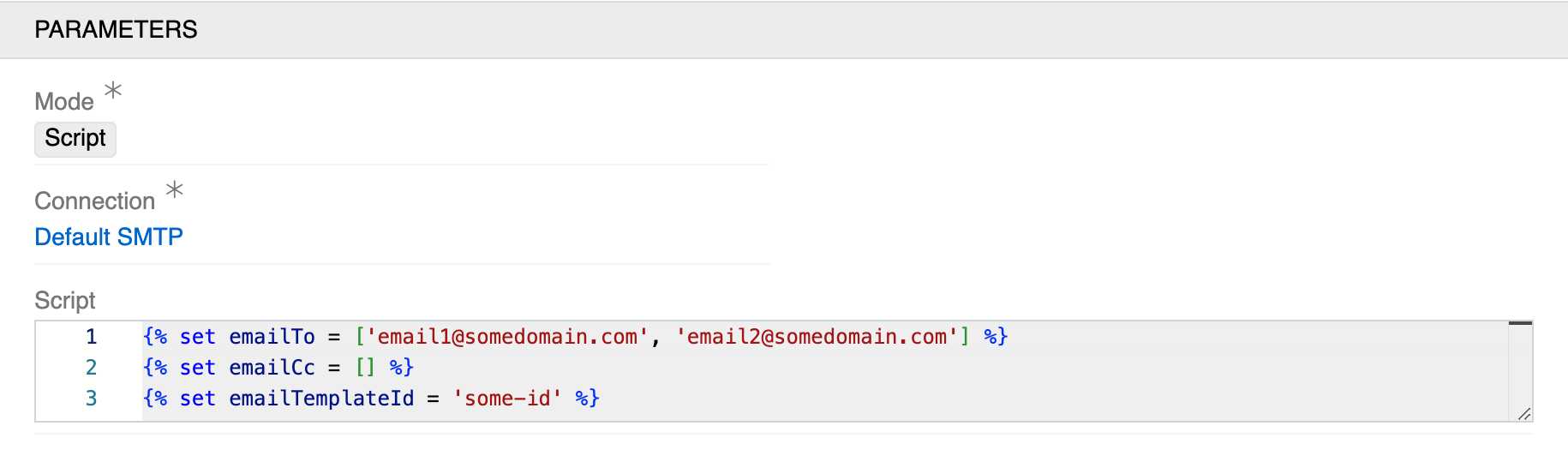 For example, you can send an email to all users who are related to the particular record or select a template depending on the kind of changes.
- Script: Code editor for dynamic email configuration with Twig variables:
emailTo: Array of recipient email addresses (e.g.,['email1@domain.com', 'email2@domain.com'])emailCc: Array of CC recipient email addresses (can be empty:[])emailTemplateId: ID of the email template to use (e.g.,'some-id')
Send Notification
Sends internal system notifications to users within the AtroCore application.
Can be used to send notifications to any users of the system in response to a specific trigger (record modification, changing of the specific field, etc.). You can select a specific user from the list of all system users, as well as select users associated with a specific entity.
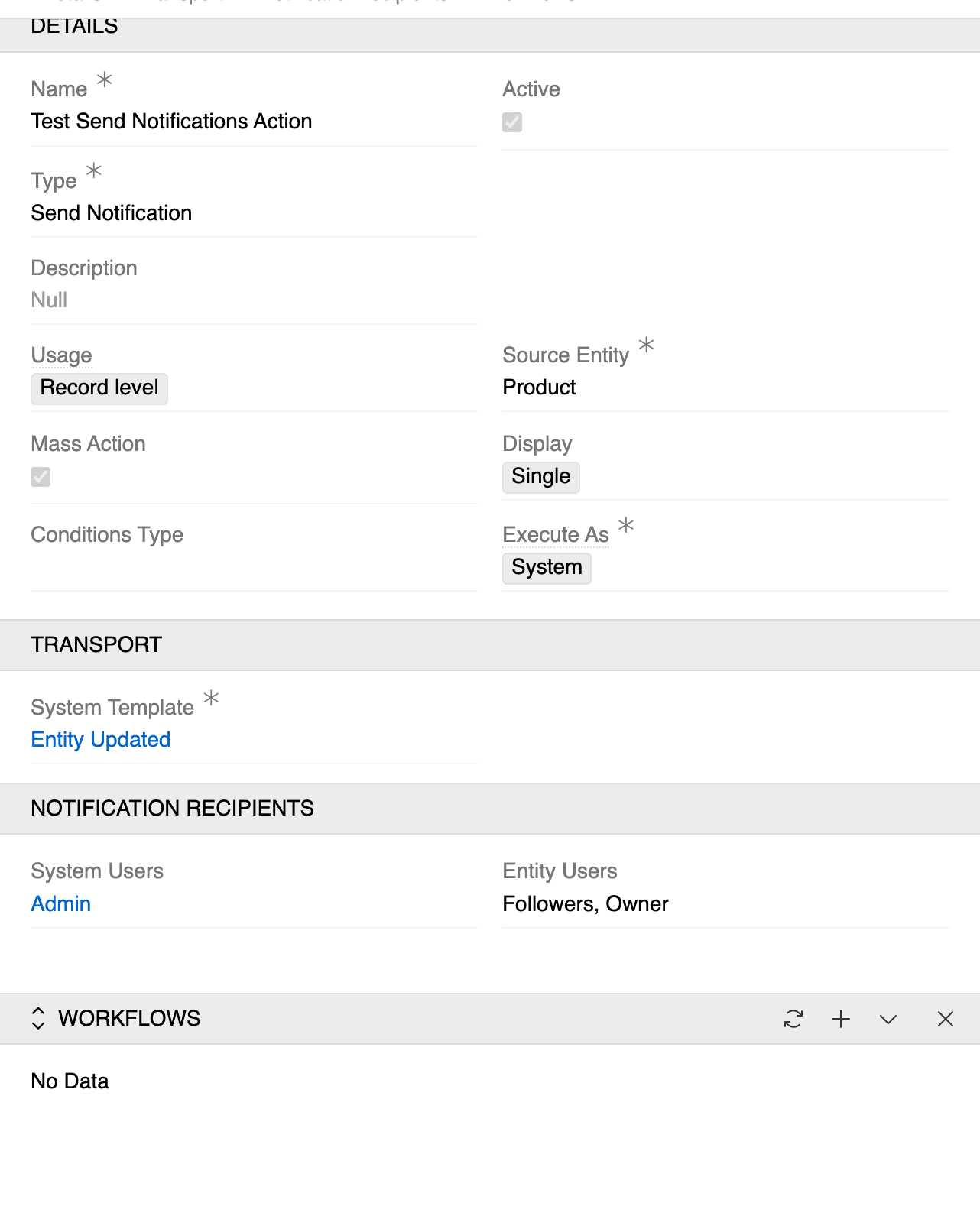
Configuration:
- System Template: Notification template (required) - links to Notification Templates. You can choose any of the pre-configured templates or create your own
- System Users: Specific users to receive notifications - links to Users
- Entity Users: Role-based recipients related to the entity record. The list of available fields depends on the entity selected in the Source Entity field. All user-related fields from the selected entity are presented here (Owner, Assigned User, Followers, etc.)
Notifications can have flexible recipients. This can be achieved using script mode and determine the user ID:
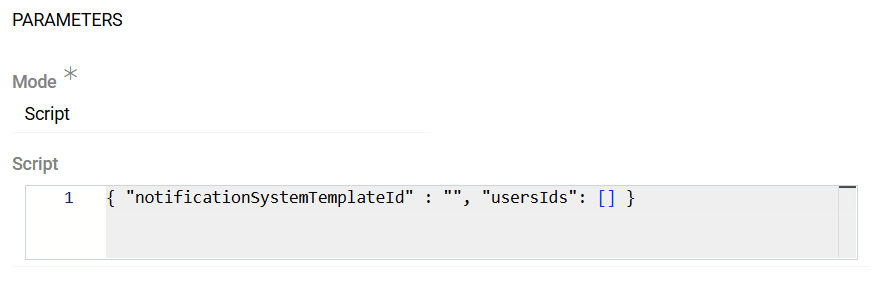
Here is an example of a script that determines the user ID:
{% set ids = [] %}

{% for team in entity.categories[0].teams ?? [] %}
    {% for user in team.get('users') %}
        {% set ids = ids | merge([user.id]) %}
    {% endfor %}
{% endfor %}

{ "notificationSystemTemplateId" : "systemUpdateEntity", "usersIds": {{ids|json_encode|raw}} }
Get MS E-mails
This is an action added by Microsoft 365 Connector module. It downloads emails from your Microsoft mailbox and saves them in Emails entity. For more information please read Microsoft 365 Connector documentation page.
Document Generation
Generate PDF
Available with PDF Generation module.
Creates PDF documents using configured PDF templates.
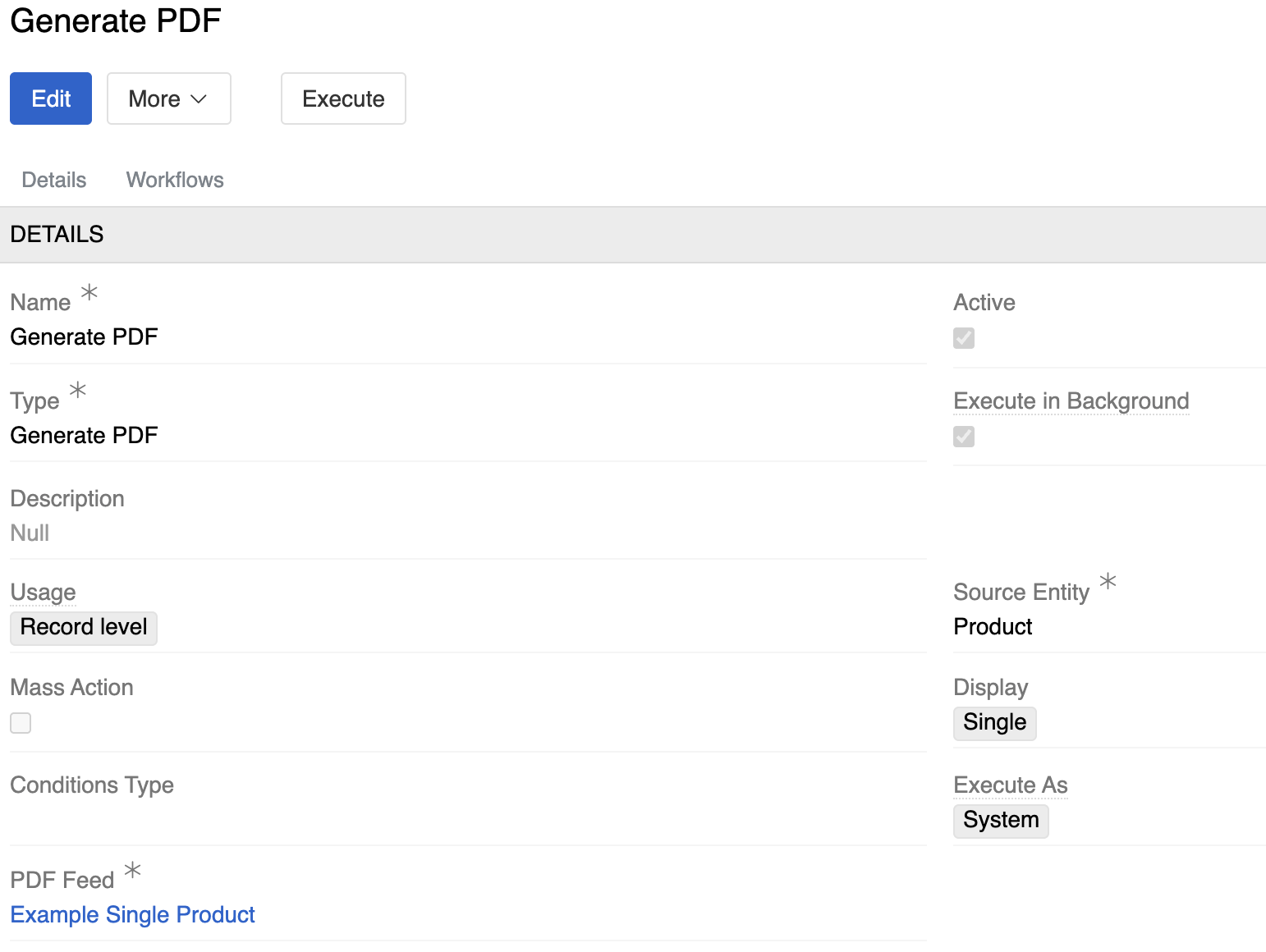
Configuration:
- PDF Feed: Selection of configured PDF template
Utility Actions
Error Message
Displays custom error messages to prevent operations. Primarily used with "Before" workflow triggers for data validation.
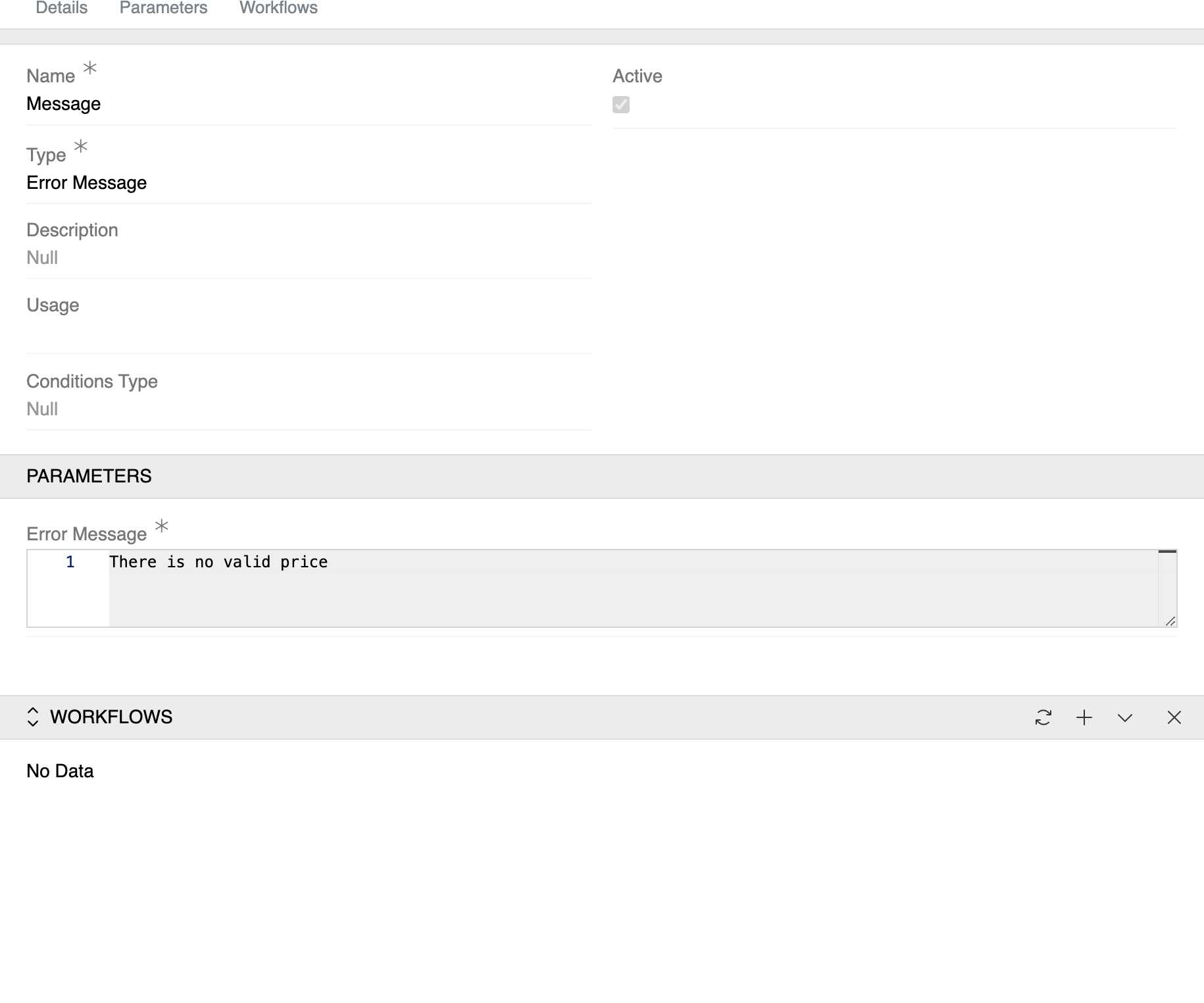
Configuration:
- Error Message: Text content for the error message (supports dynamic content with Twig syntax)
This action is typically used within Workflows for conditional error handling. It is usually set up with an empty Display field so it does not appear as an action button, and the error message is shown whenever the action is triggered in the workflow.
Validate Component
This is an action added by Components module. For more information please read Components documentation page.
Action Set
Executes multiple actions sequentially in a single operation. When triggered, the Action Set executes each enabled action in sequence. Each action must complete before the next begins. Individual actions can be temporarily disabled using the Active in Action Set checkbox without removing them from the set.
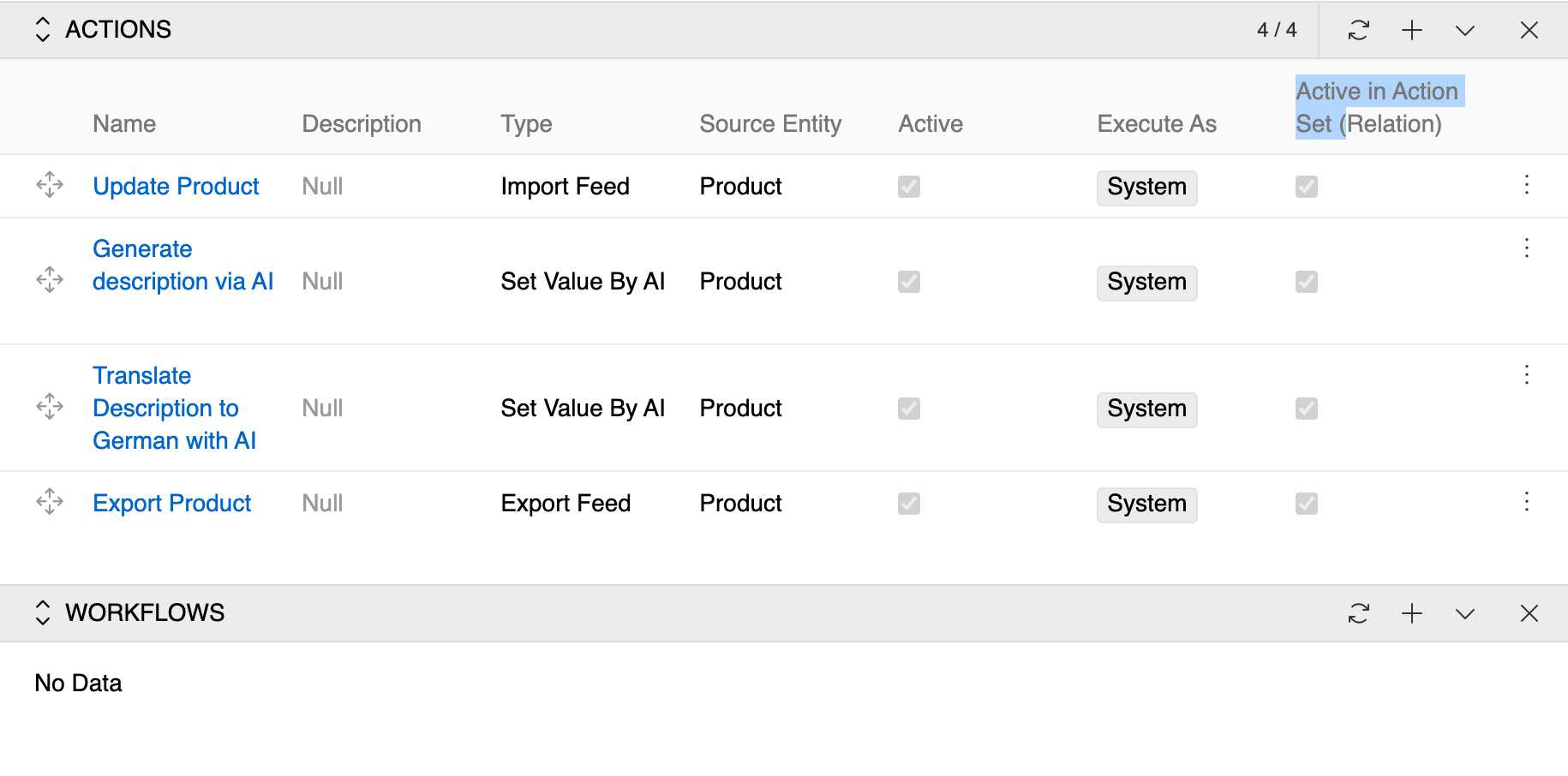
Configuration:
- Actions Panel: Displays all included actions with their details (Name, Type, Source Entity, etc.)
- Active in Action Set: Each action has a checkbox to control its participation in action sets
- Sequential Execution: Actions execute in the defined order when triggered
Use Cases:
- Execute multiple related actions as a single operation (e.g., AI content generation, translation, export)
- Temporarily disable specific actions for testing different scenarios
- Integrate complex workflows while maintaining control over individual components